

CleanMate boosts Mac performance by removing unnecessary junk files, clearing browser clutter, uninstalling stubborn apps and reducing startup load, which helps free up system resources and speed up everyday tasks. With safe cleanup processes and easy-to-use tools, it keeps your Mac running smoother, faster, and more stable over time.
This guide is designed to help you understand and make the most of CleanMate, an all-in-one Mac cleaning and optimization tool for macOS. Before proceeding, please download and install the app on your Mac first.

Table of Content:
Part 1: How to Clean Junk Files with CleanMate
The Junk Cleaner feature scans your PC for unnecessary files such as temporary files, log files, image thumbnails, Windows update leftovers, and system or app caches. By safely removing this accumulated clutter, it frees up disk space and helps your Windows system run faster and more smoothly without affecting important files.
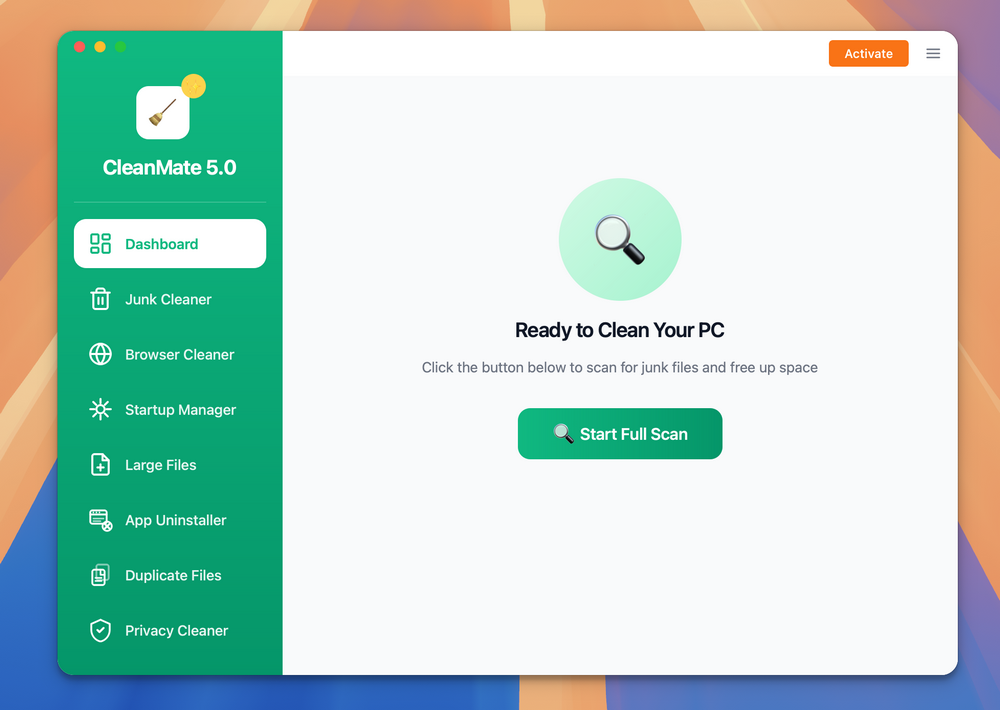
Step 1: Open the CleanMate app on your computer and click the Start Full Scan button at the home screen to have a full scan of the computer.
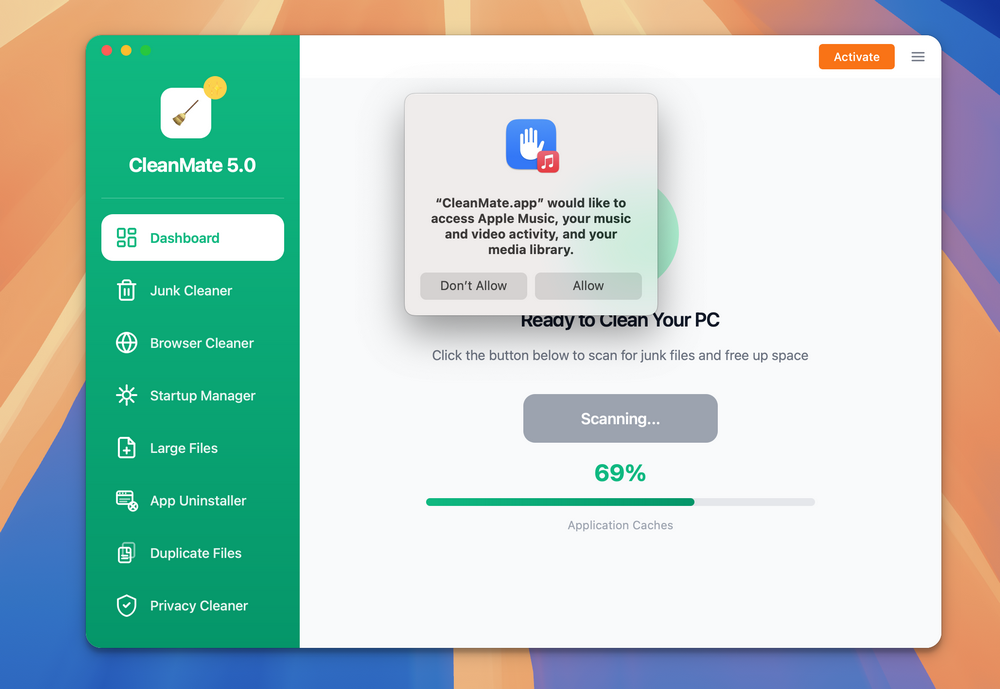
Step 2: Once it starts, you need to allow the permission to access different folders on this Mac.
Step 3: Wait about 2-3 minutes, the scan result will be present on the screen. The total amount of cleanable space is listed the upper right corner.
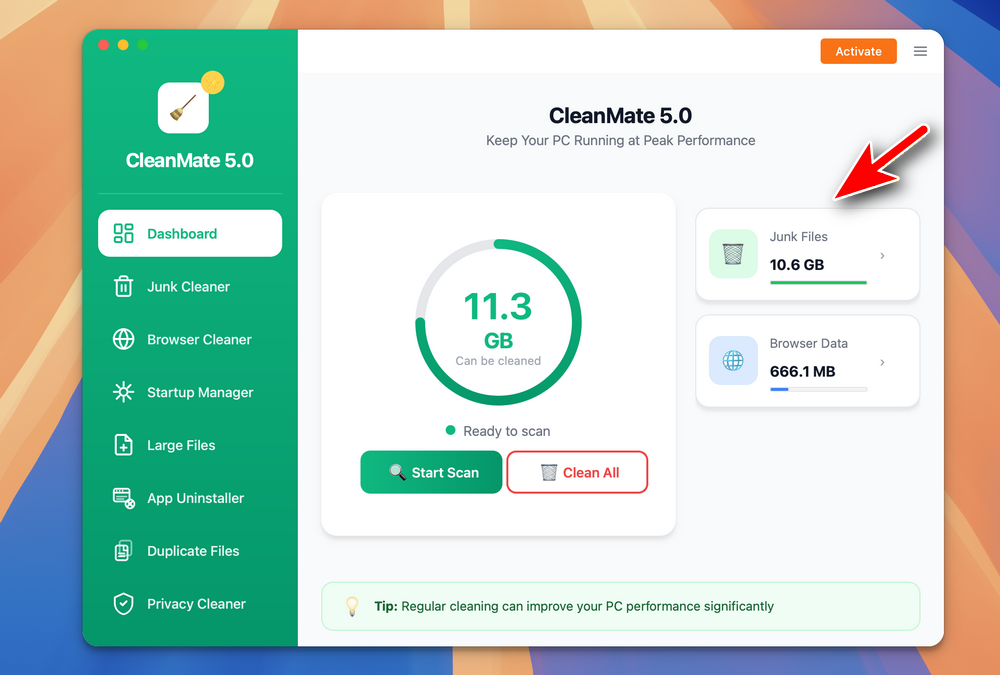
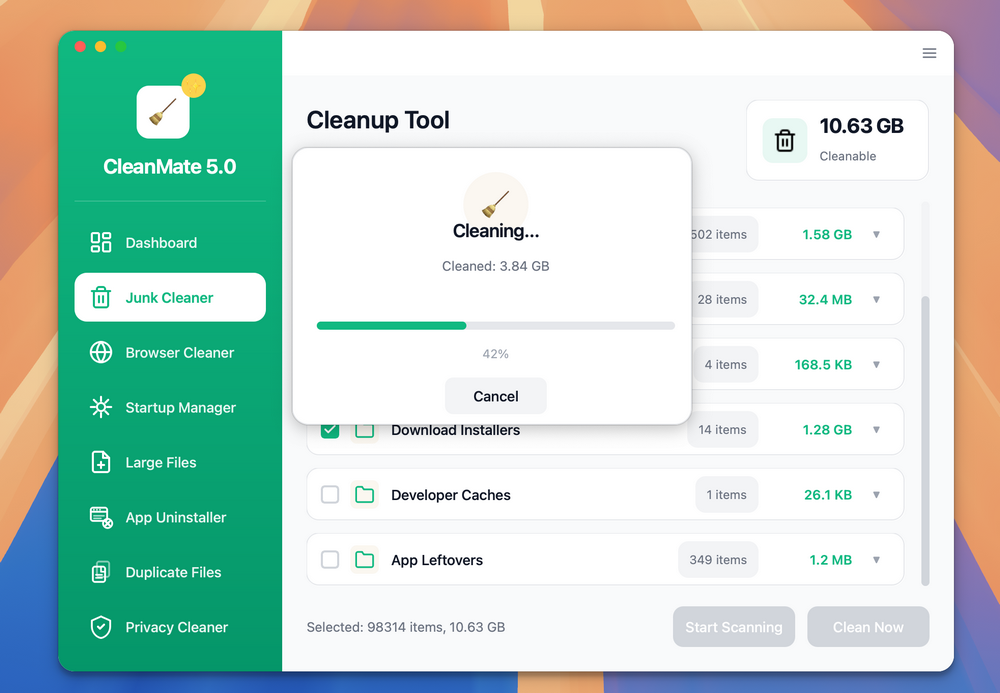
Step 4: Now, click the Junk Files option and you will see the details.
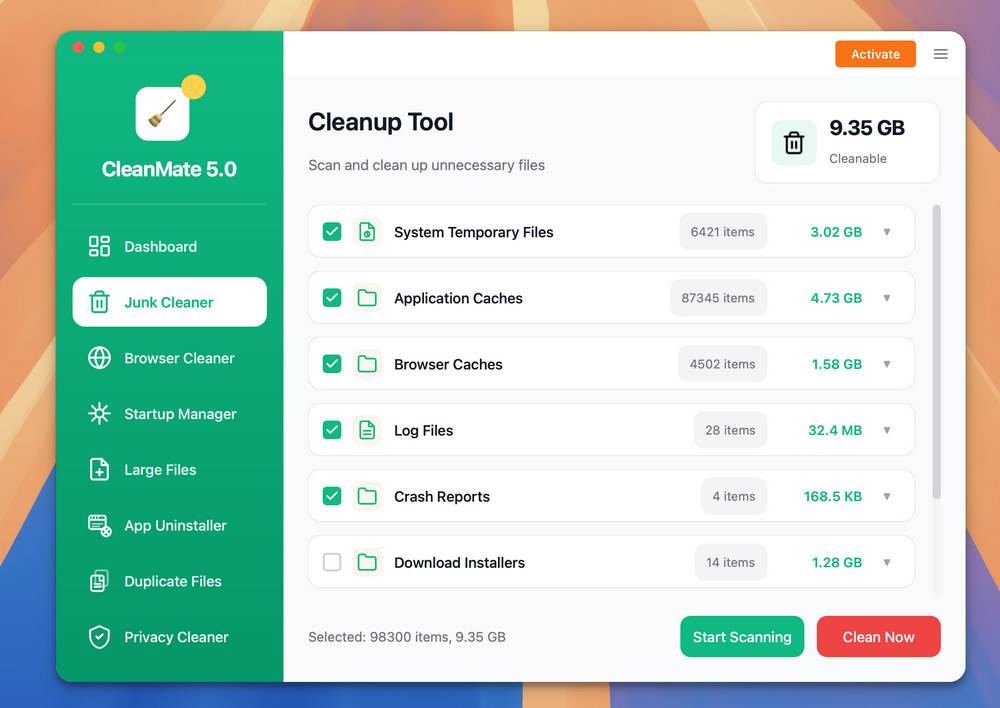
Step 5: Select the items you want to delete from this Mac and click the Clean Now button. You will be asked to confirm the operation. Once it is done, the app starts to delete the junk files from your Mac.
Part 2: How to Clean up Web Browser with CleanMate
The Browser Cleaner feature removes unnecessary browsing data such as cache files, cookies, browsing history, download records, and saved form data from your web browsers. This helps free up disk space, protect your privacy, and improve browser performance by clearing out accumulated and outdated data.
Step 1: Open the CleanMate app on your computer and click the Browser Cleaner menu from the left sidebar.
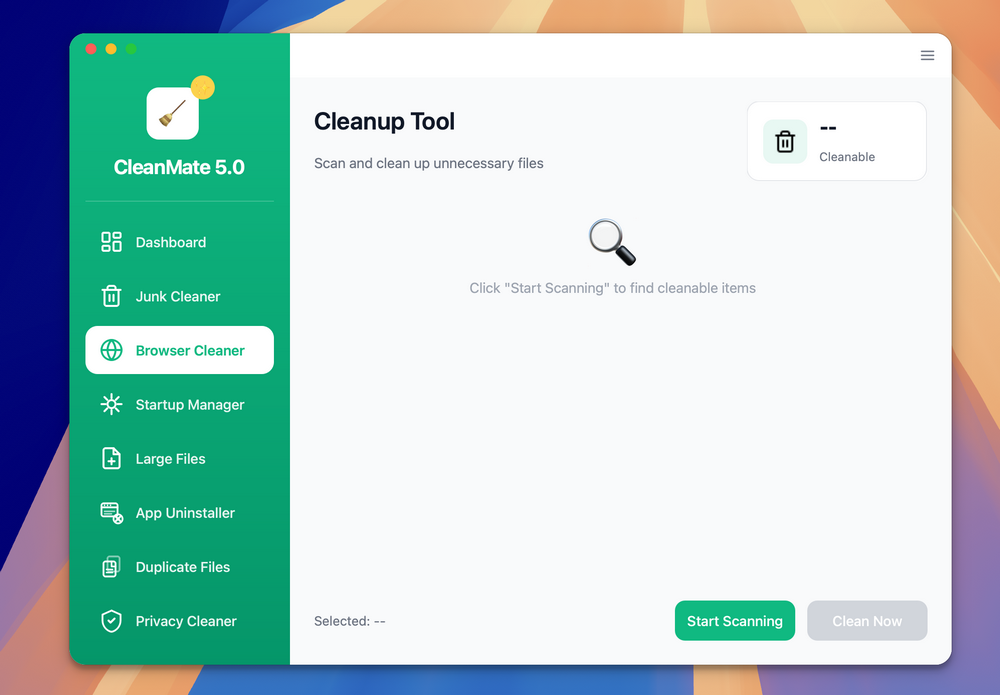
Step 2: From the new window, click the Start Scanning button to have a full scan of web browsers on the computer. Wait a few seconds, the scan result will be present on the screen. The total amount of cleanable space is listed the upper right corner.
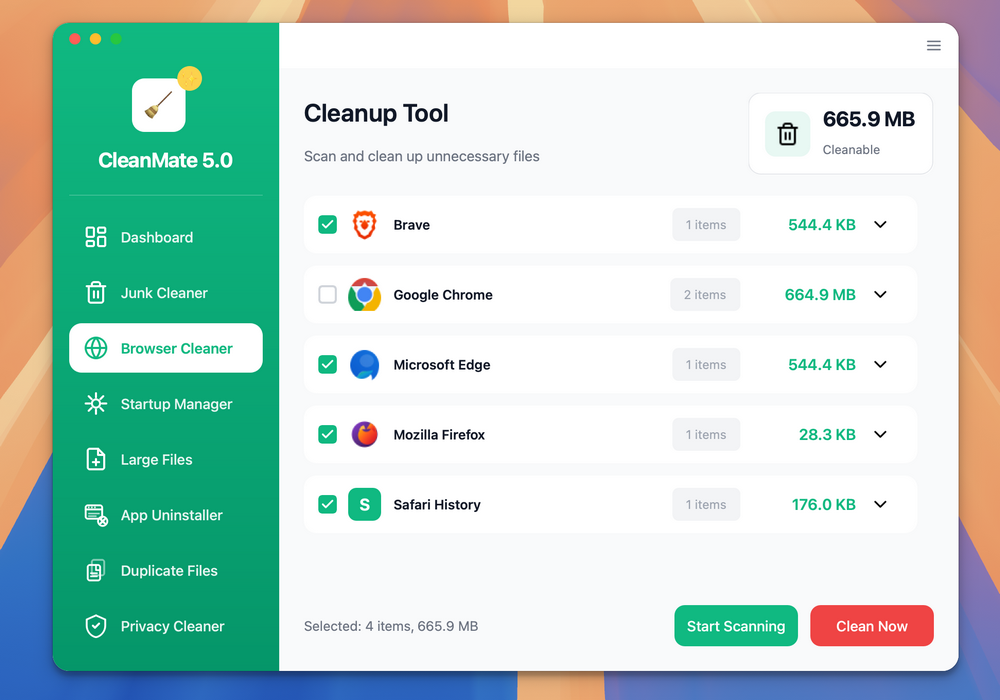
Step 3: Please select the items you want to clean up.After selection, click the Clean Now button to clean up the browser data on your computer.
Part 3: How to Bulk Uninstall Apps with CleanMate
The App Uninstaller feature allows you bulk deleting apps from Mac. Unlike the standard uninstall from the Applications folder, CleanMate will permanently the apps along with the leftover files, such as app caches and temporary data.
Step 1: Open the CleanMate app on your computer and click the App Uninstaller menu from the left sidebar. The app will start scanning all apps on this Mac automatically.
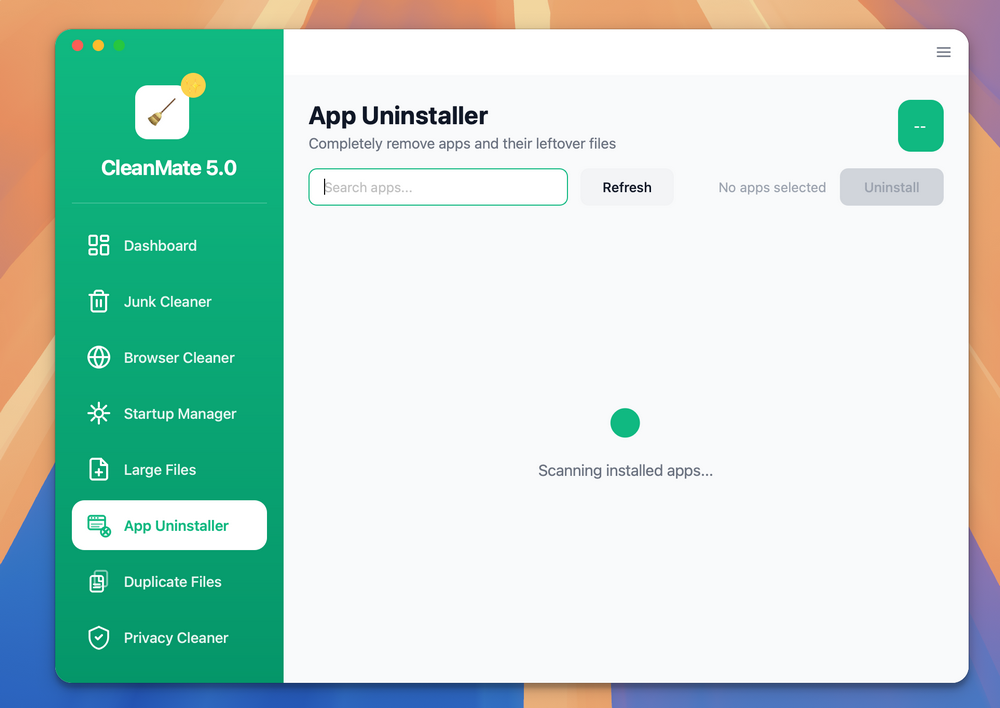
Step 2: Wait about 1-2 minutes, the scan result will be present on the screen. The total amount of apps is listed the upper right corner. Please select the apps you want to remove from the Mac.
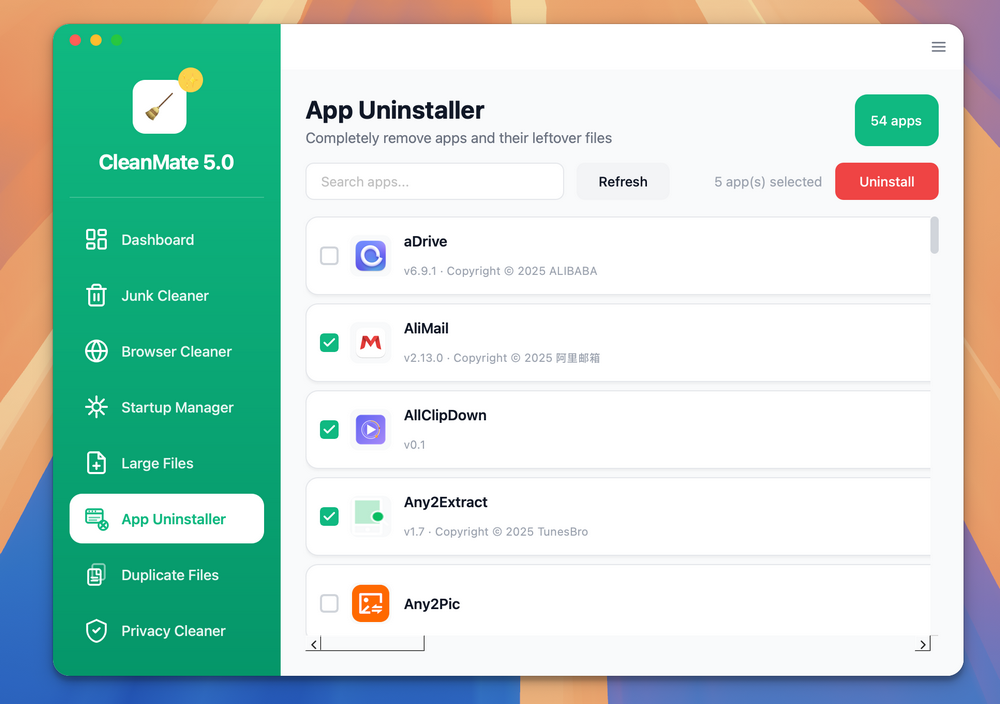
Step 3: After selection, click the Uninstall button at the upper right corner. The selected apps will be uninsalled permanently from the Mac.
Summary:
CleanMate makes Mac maintenance simple, safe, and efficient. By using its cleaning and optimization features regularly, you can keep your Mac running smoothly, reduce clutter, and maintain better overall performance. We recommend following the instructions in this guide to get the best results and enjoy a faster, cleaner, and more reliable PC with CleanMate.
💬 Reviews