
Allowing user management of kernel extensions from identified developers provides greater flexibility for advanced users and developers, enabling them to install and manage necessary software that requires specific kernel extensions. This option ensures that only trusted developers, whose identities are verified, can load kernel extensions, balancing security with the need for custom software solutions. It can be especially useful for running specialized tools or legacy applications that are essential for certain workflows.
This guide will show you how to turn on user management of kernel extension from identify users on Apple Silicon Mac (M4/M3/M2/M1).
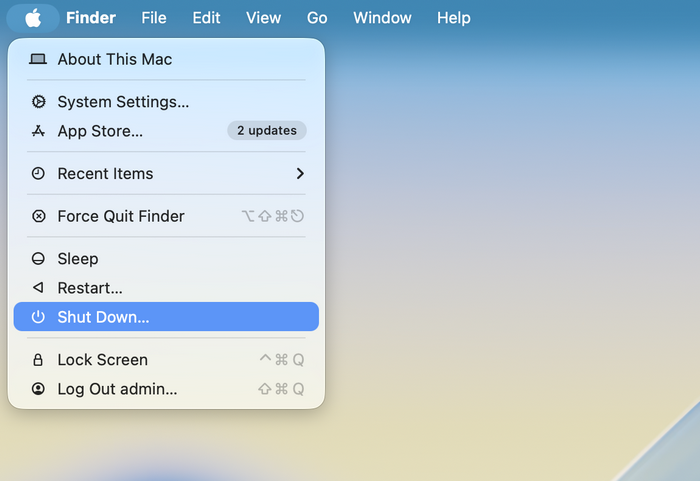
Step 1: Shut down your Mac
Click on the Apple logo in the top left corner of the screen, then select "Shut Down."
Step 2: Boot into macOS Recovery
Press and hold the power button for a couple of seconds until the startup options appear. Select Options, then click Continue to enter macOS Recovery.

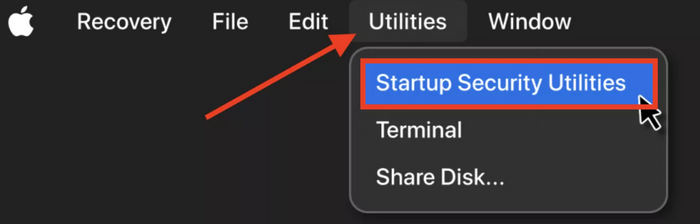
Step 3: Open Startup Security Utility
In the macOS Recovery window, go to the Utilities menu and select Startup Security Utility. You will be asked to enter an administrator password to proceed.
Step 4: Enable User Management of Kernel Extension
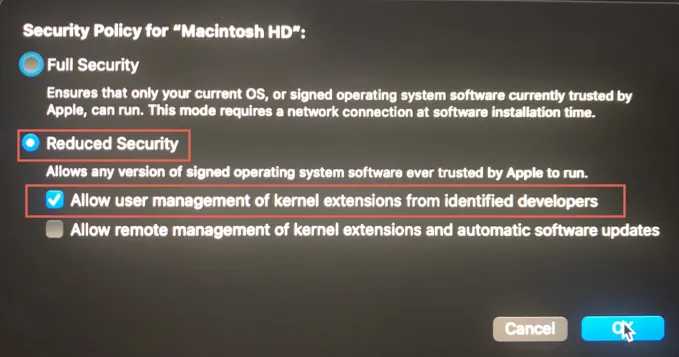
In the Startup Security Utility, you'll see options for the security settings. Select the Reduced Security option and choose "Allow user management of kernel extension from identified developers. "
Step 5: Reboot Your Mac
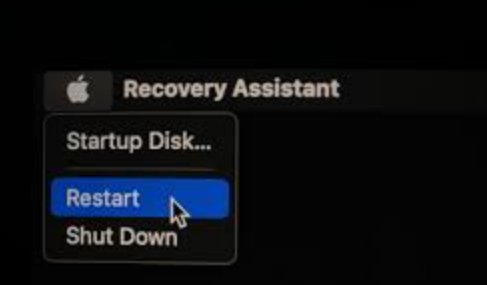
Once the option is enabled, click the Apple logo at the top left corner to restart your Mac and apply the changes.
If you still have problem for this settings, please contact our support team for assistance!