
Temporary files are created by Windows and installed apps to store short-term data, but over time they can build up and take up a surprising amount of disk space. If your Windows 11 PC feels slower or your C drive is getting full, deleting temporary files is one of the easiest and safest ways to clean things up.
Why Using CleanMate for Deleting Temporary Files
Temporary files include system temp files, app cache, log files, update leftovers, image thumbnails, and other short-term data that Windows no longer needs after certain tasks are finished. While harmless at first, leaving them untouched for months can waste storage and affect performance.
Deep temporary file detection – Finds system temp files, app cache, Windows update leftovers, log files, and thumbnails in one scan.
Safe cleanup process – Removes only unnecessary temporary files without affecting important system or personal data.
Clear preview before cleaning – Shows what will be deleted and how much space will be freed.
One-click operation – Cleans multiple temporary file locations at once with minimal effort.
User-friendly interface – Easy to use, even for users with no technical experience.
Optimized for Windows 11 and 10 – Fully compatible with modern Windows systems for reliable results.
How to Delete Temporary Files on Windows 11/10 with CleanMate
Step 1: Open the CleanMate app on your computer and click the Junk Cleaner menu from the left sidebar.

Step 2: Launch CleanMate and open the Junk Cleaner feature.
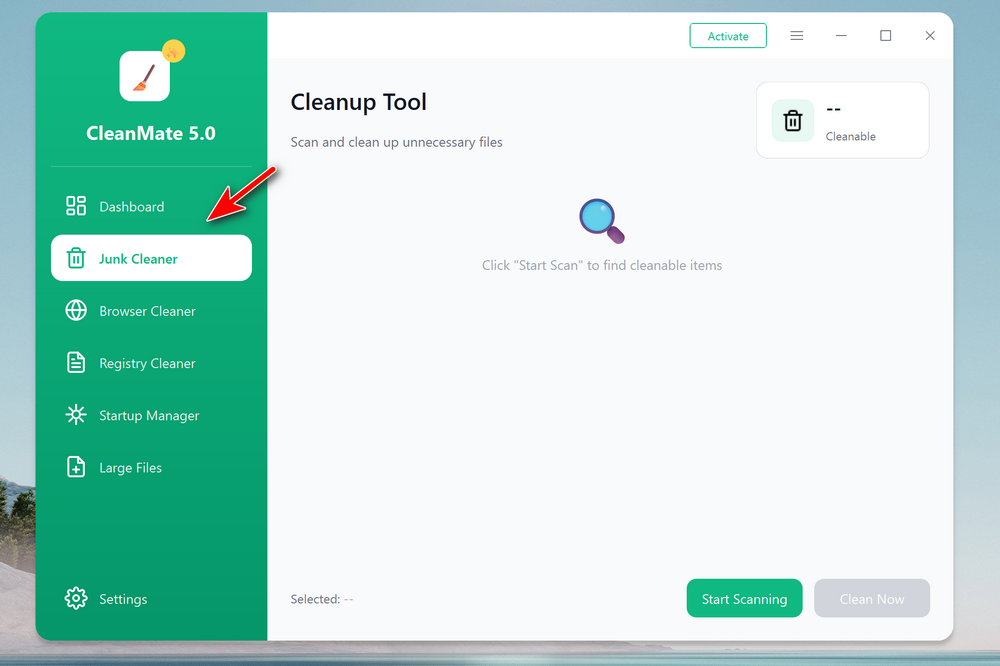
Step 3: Click Start Scanning to detect system cache, app cache, temporary files, and other junk data. Review the scan results to see how much cache space can be freed.
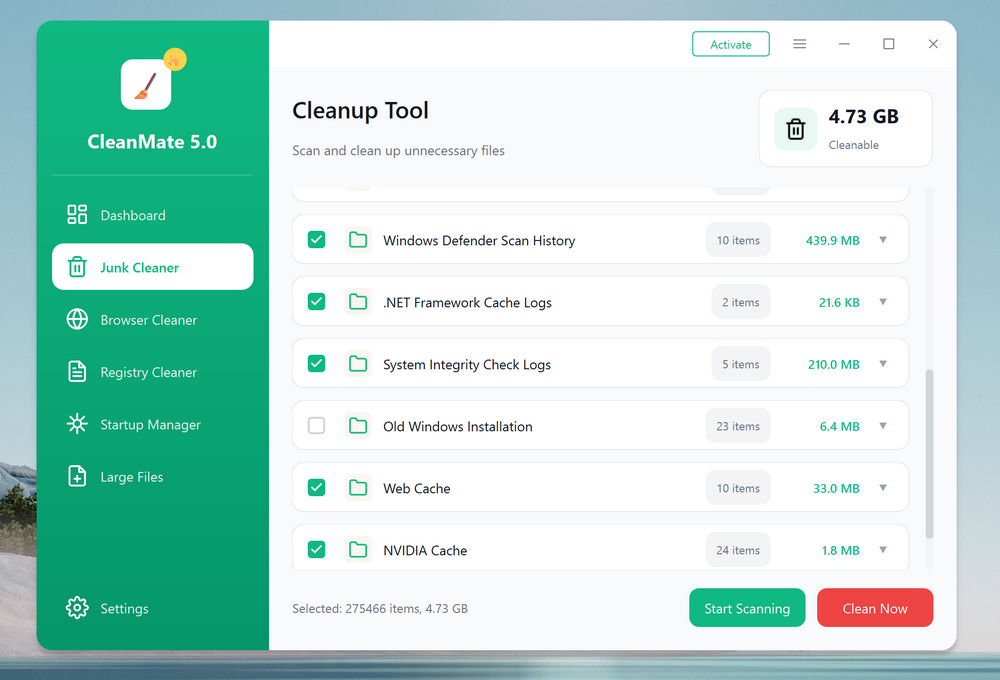
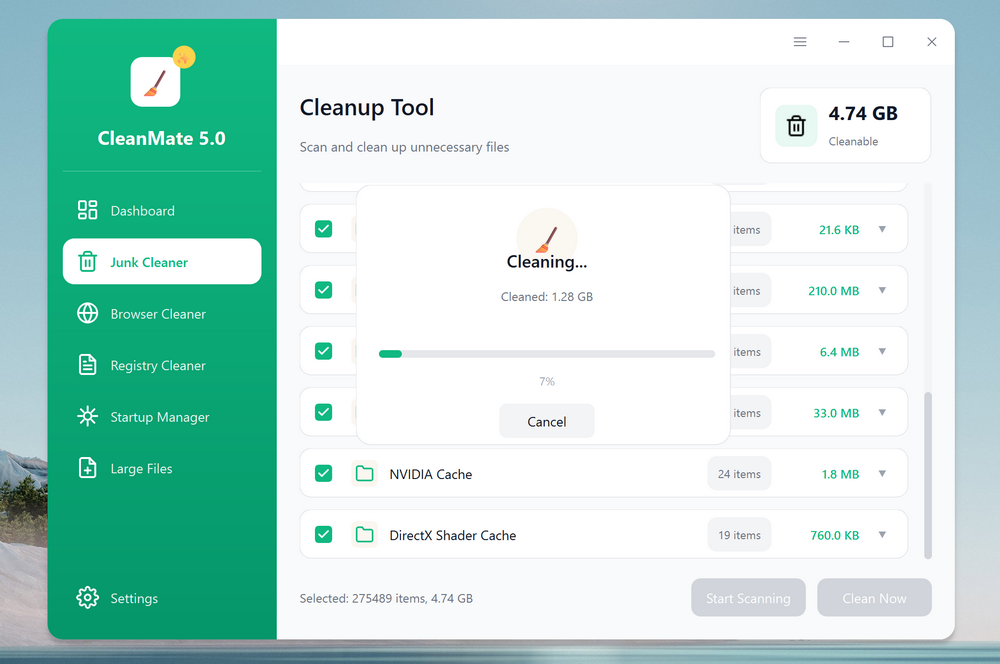
Step 4: Click Clean Now to safely remove all detected cache files.
Summary
Learning how to delete temporary files on Windows 11 is an essential part of PC maintenance. While Windows offers basic cleanup options, tools like CleanMate make the process quicker, safer, and more effective. By cleaning temporary files regularly, you can keep your system fast, organized, and running at its best.