Frequently asked questions
SnipTaker Screenshot FAQ
Quick answers about taking custom, full-screen, window, and scrolling screenshots with UUByte SnipTaker.
How do I take a custom screenshot with SnipTaker?
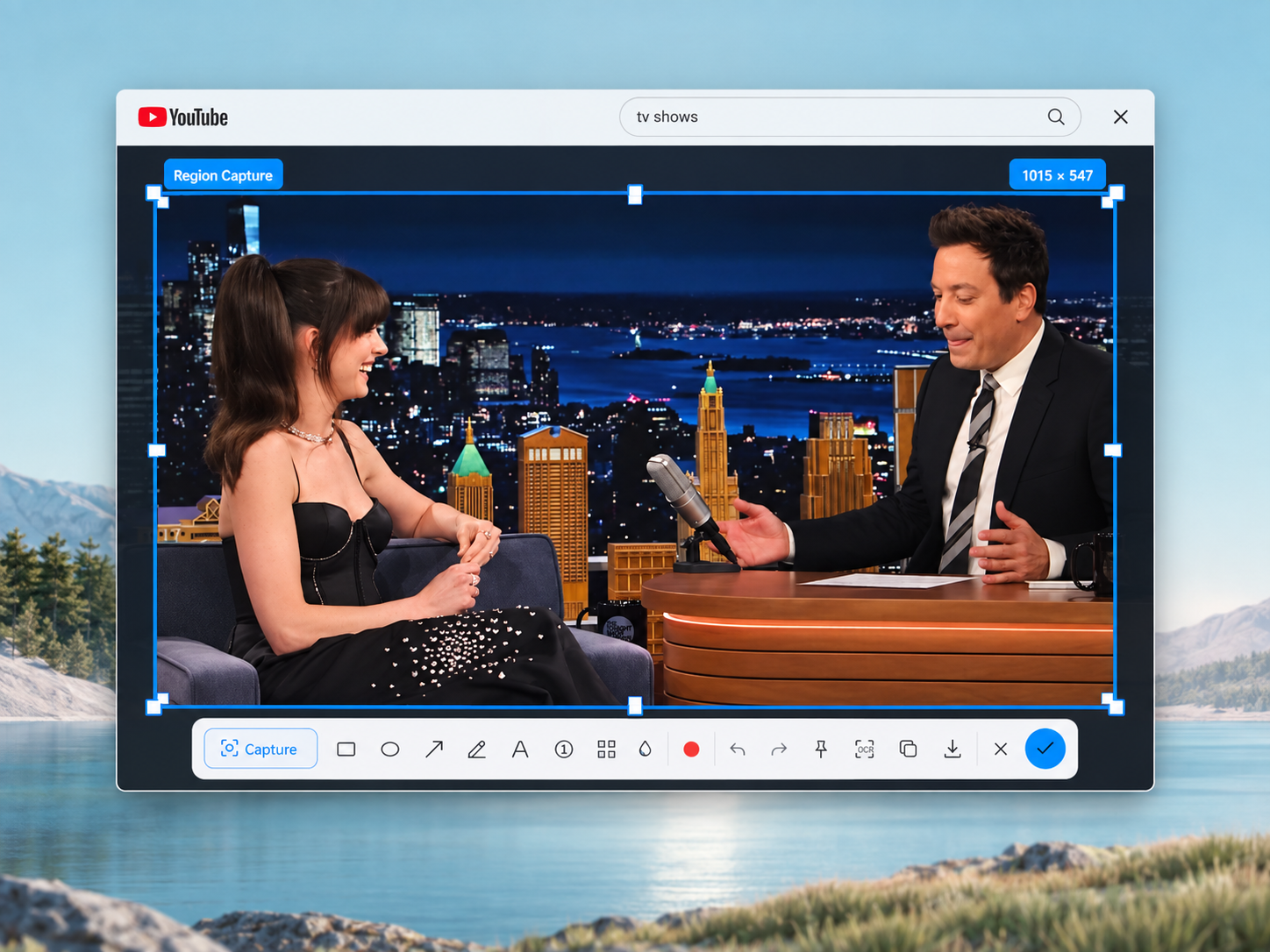
Open SnipTaker, choose the custom or region capture option, and drag over the exact area you want to keep. When the capture is complete, save it, copy it to the clipboard, or continue to the annotation tools.
Can SnipTaker capture the full screen?
Yes. Choose Full Screen when you want everything currently displayed on the monitor in one screenshot.
How do I take a scrolling screenshot of a long webpage?
Choose the scrolling capture option, select the page or scrolling content, and let SnipTaker capture the content as it moves down the page. The captured sections are combined into one continuous screenshot.
Can I edit or annotate a screenshot immediately?
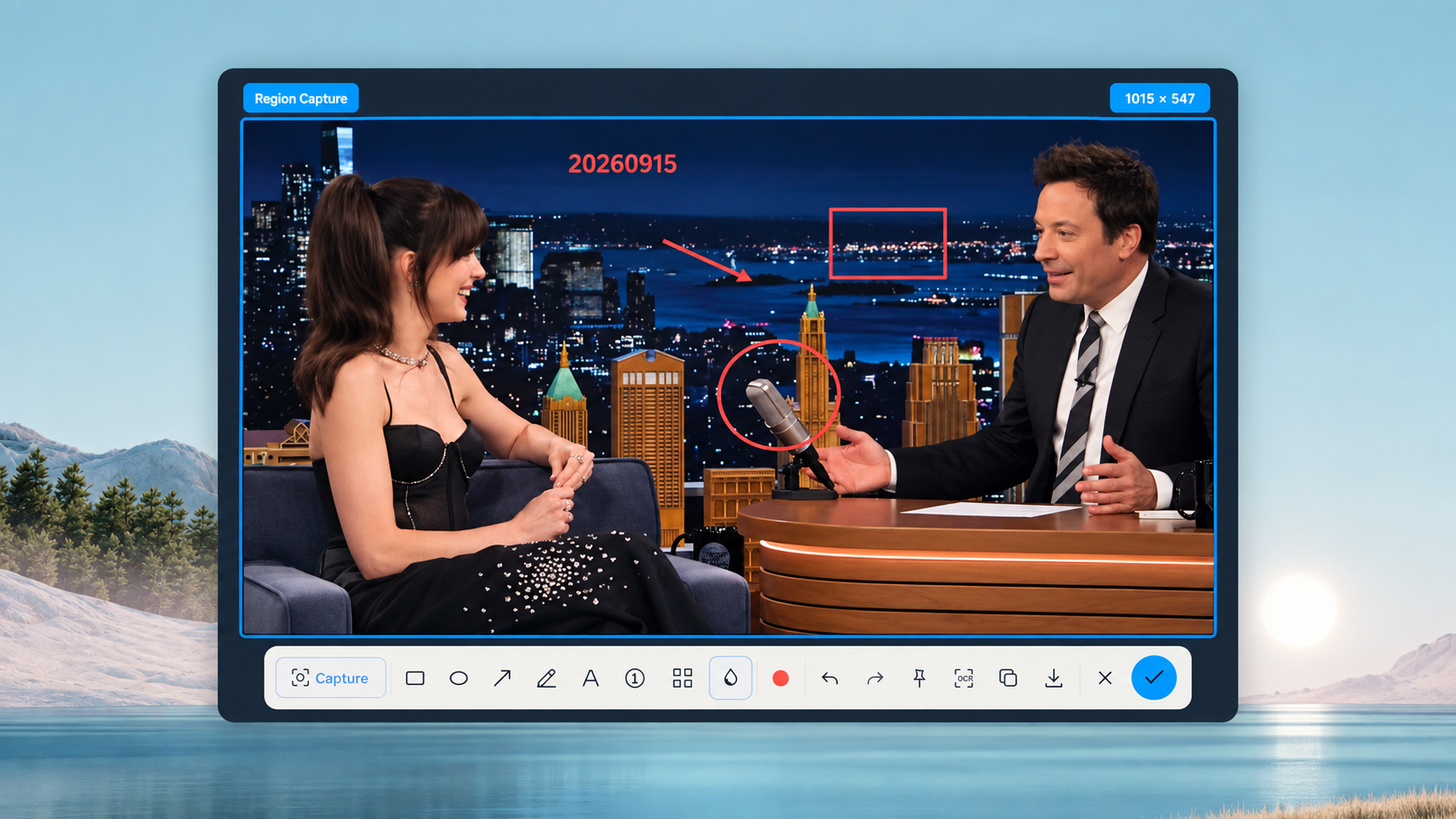
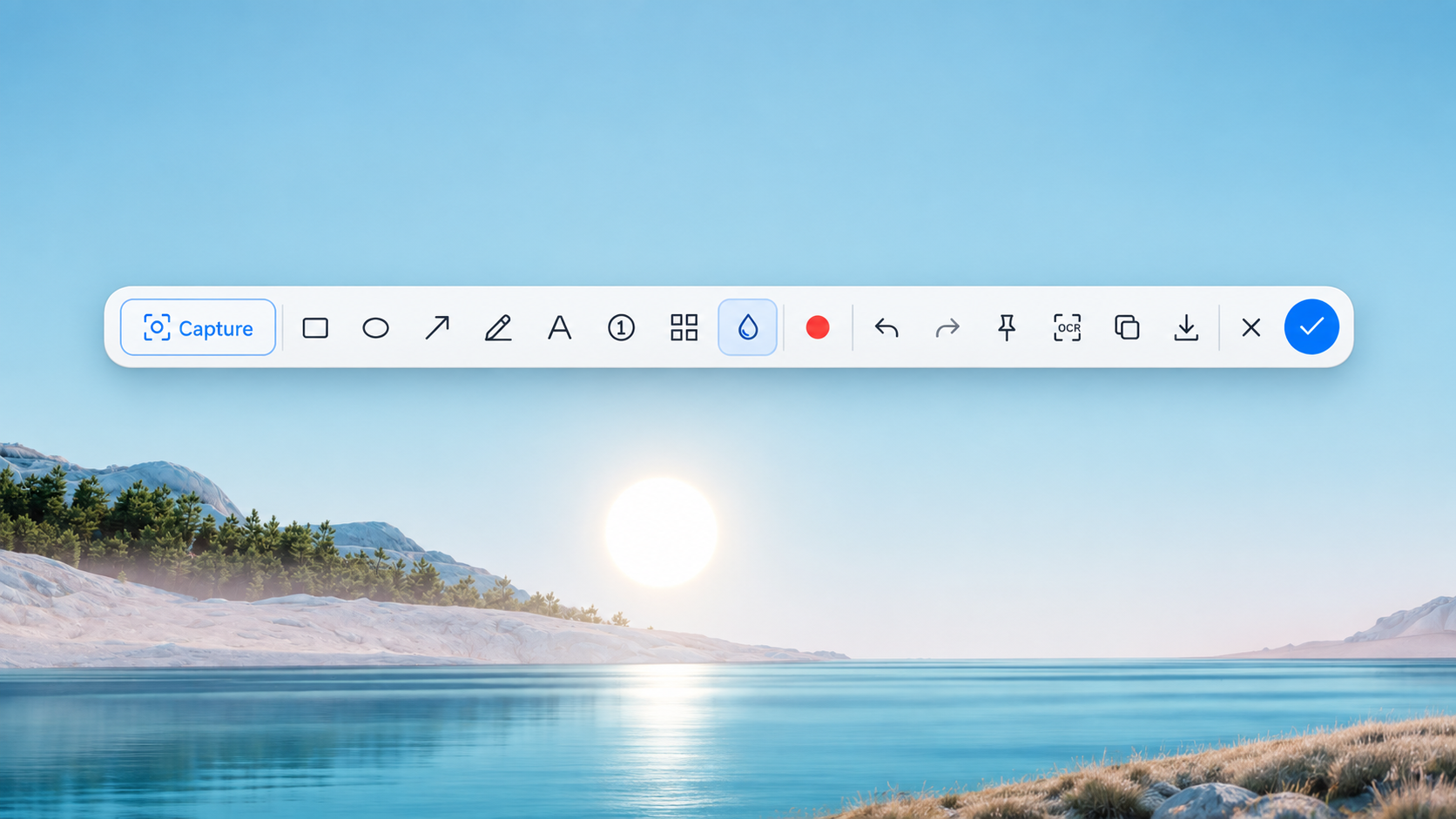
Yes. After capture, you can add text, arrows, rectangles, circles, freehand drawings, numbered markers, and other visual elements before saving or copying the image.
Can I copy a screenshot directly to the clipboard?
Yes. SnipTaker can keep the capture workflow fast by letting you copy the screenshot to the clipboard and paste it into another app, or save the image as a file for later use.

💬 Reviews