

CleanMate boosts PC performance by removing unnecessary junk files, clearing browser clutter, fixing invalid registry entries, and reducing startup load, which helps free up system resources and speed up everyday tasks. With safe cleanup processes and easy-to-use tools, it keeps your Windows PC running smoother, faster, and more stable over time.
This guide is designed to help you understand and make the most of CleanMate, an all-in-one PC cleaning and optimization tool for Windows. Before proceeding, please download and install the app on your computer first.

Table of Content:
Part 1: How to Clean Junk Files with CleanMate
The Junk Cleaner feature scans your PC for unnecessary files such as temporary files, log files, image thumbnails, Windows update leftovers, and system or app caches. By safely removing this accumulated clutter, it frees up disk space and helps your Windows system run faster and more smoothly without affecting important files.
Step 1: Open the CleanMate app on your computer and click the Junk Cleaner menu from the left sidebar.
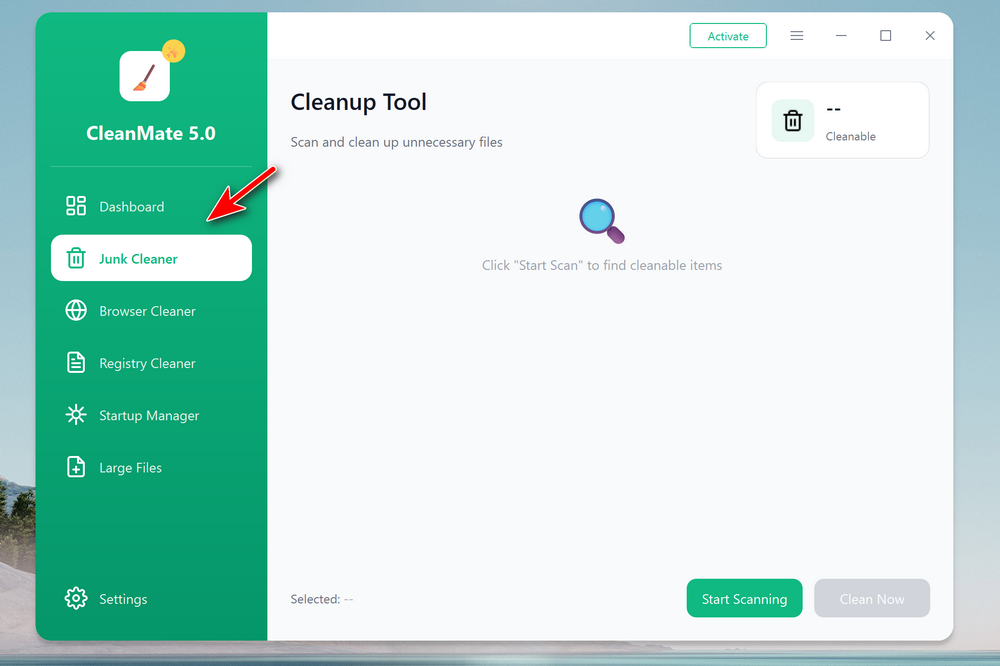
Step 2: From the new window, click the Start Scanning button to have a full scan of the computer. Wait about 2-3 minutes, the scan result will be present on the screen. The total amount of cleanable space is listed the upper right corner. Please select the items you want to clean up.
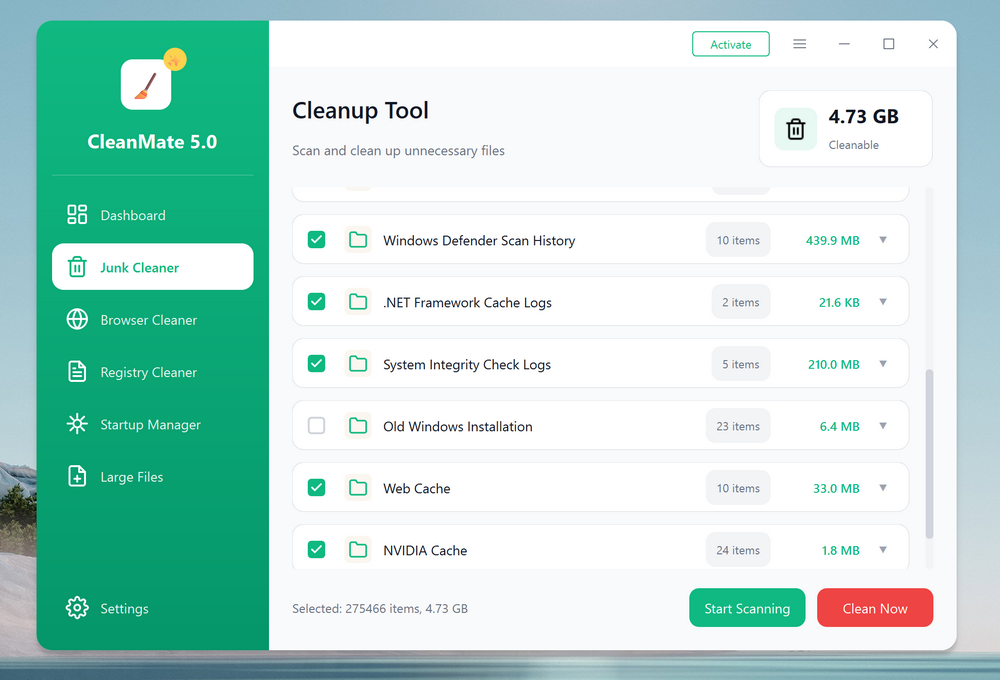
Step 3: After selection, click the Clean Now button to clean junk files on your computer.
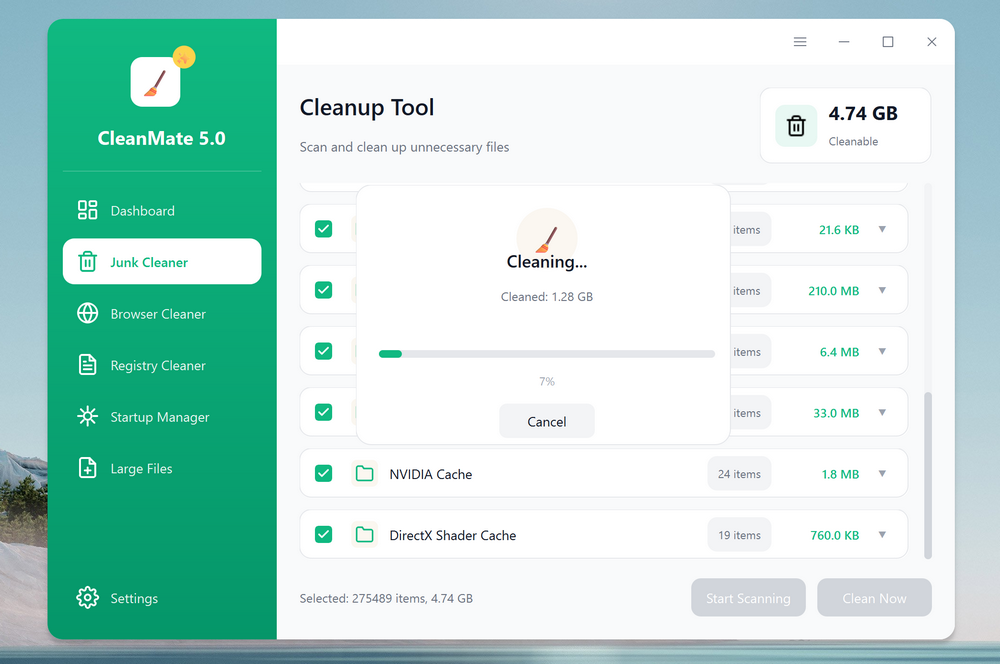
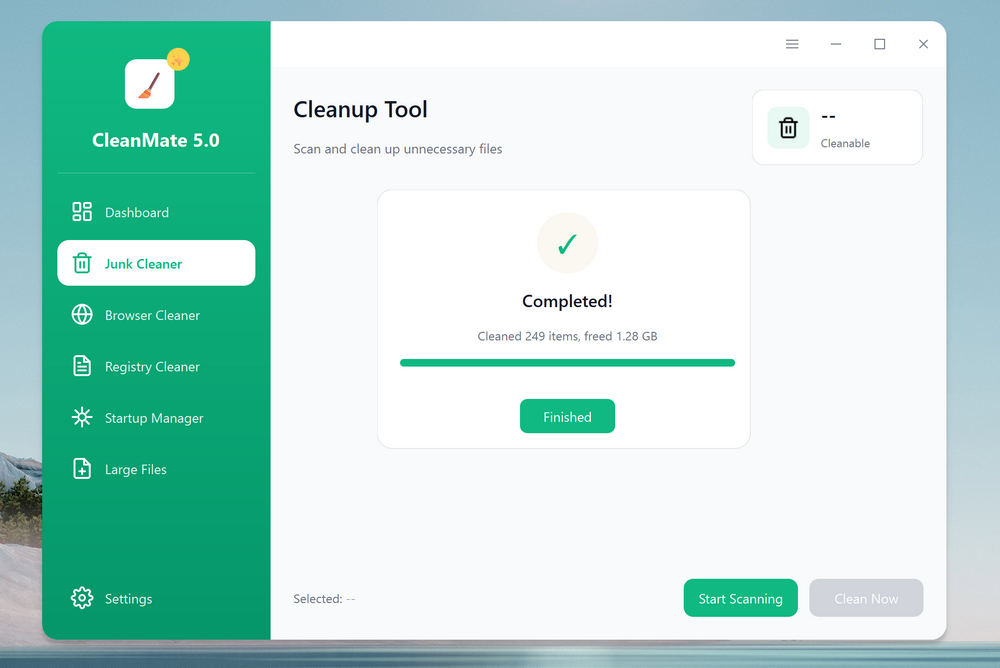
Step 4: You will see a progress bar indicating the cleanup process. Wait a few minutes and the junk files will be deleted from the computer.
Part 2: How to Clean up Web Browser with CleanMate
The Browser Cleaner feature removes unnecessary browsing data such as cache files, cookies, browsing history, download records, and saved form data from your web browsers. This helps free up disk space, protect your privacy, and improve browser performance by clearing out accumulated and outdated data.
Step 1: Open the CleanMate app on your computer and click the Browser Cleaner menu from the left sidebar.
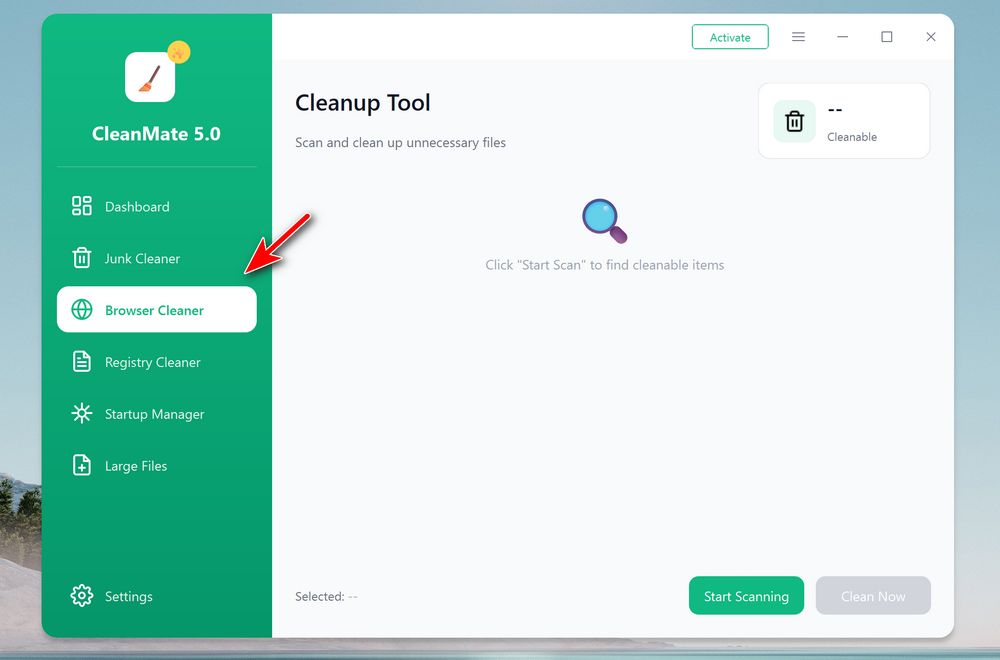
Step 2: From the new window, click the Start Scanning button to have a full scan of web browsers on the computer.
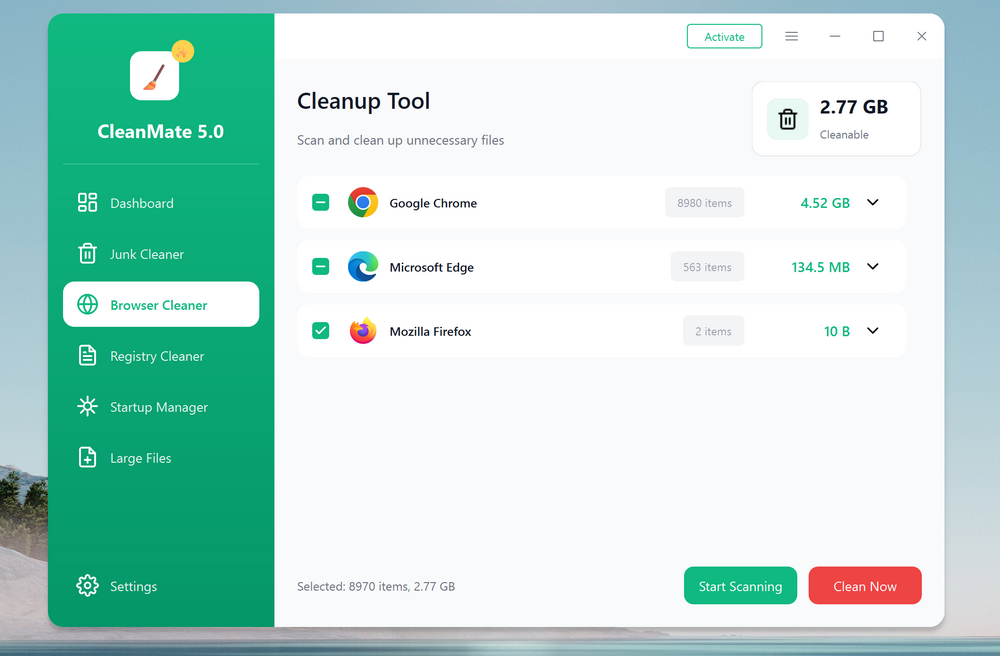
Step 3: Wait about a few seconds, the scan result will be present on the screen. The total amount of cleanable space is listed the upper right corner. Please select the items you want to clean up.
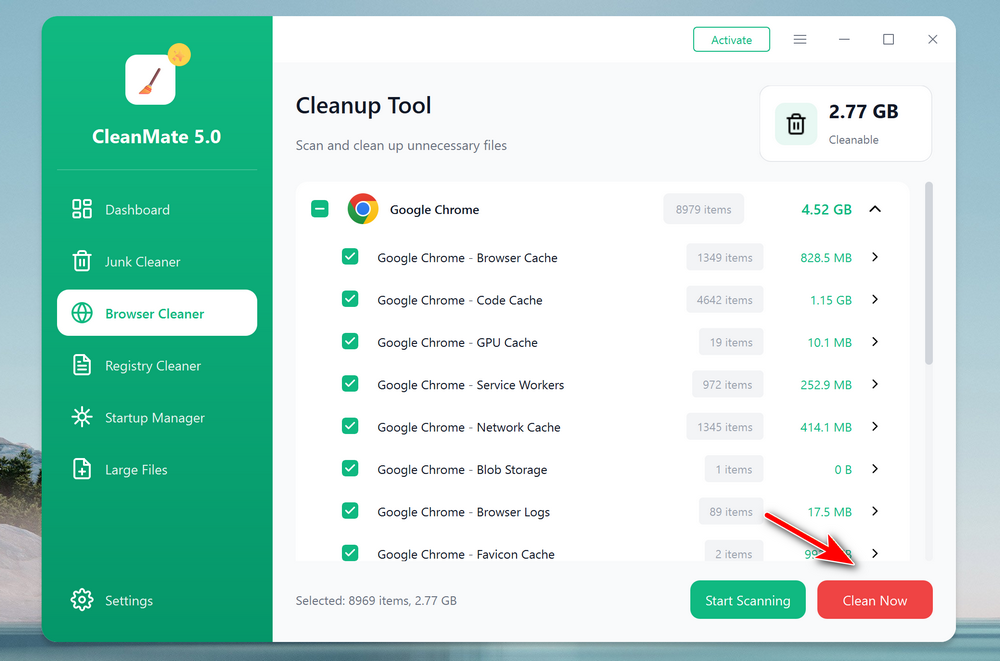
Step 4: After selection, click the Clean Now button to clean up the browser data on your computer.
Part 3: How to Clean Windows Registry with CleanMate
The Registry Cleaner feature scans your Windows registry for invalid, outdated, or broken entries that may slow down your system or cause errors. Before cleaning, it automatically creates a backup of the registry, ensuring changes can be safely restored while helping improve system stability and performance.
Step 1: Open the CleanMate app on your computer and click the Registry Cleaner menu from the left sidebar. From the new window, click the Start Scanning button to have a full sacan of the computer.
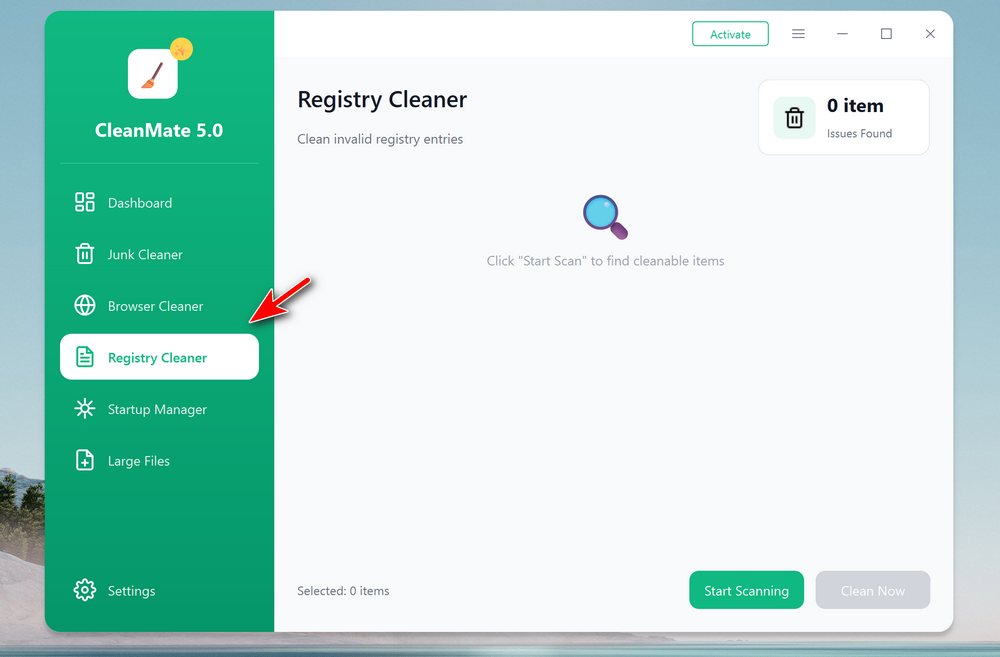
Step 2: Wait about 2-3 minutes, the scan result will be present on the screen. The total amount of cleanable items is listed the upper right corner. Please select the items you want to clean up.
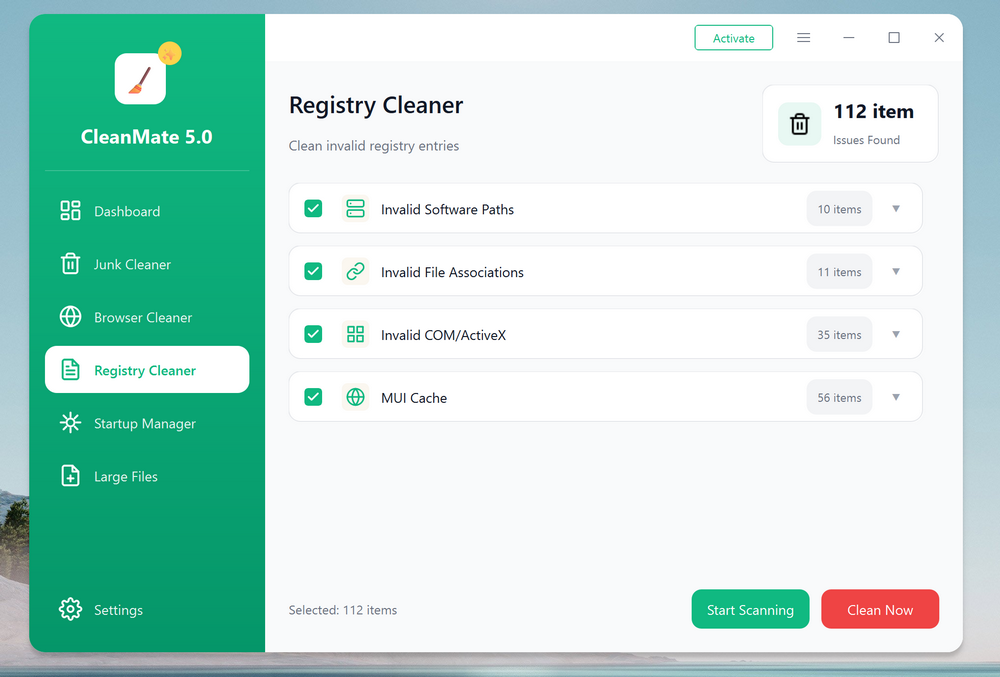
Step 3: After selection, click the Clean Now button. At this time, the app will ask you to choose a folder to have a backup of the current registry. You can click the Browse button to select a folder for backup.
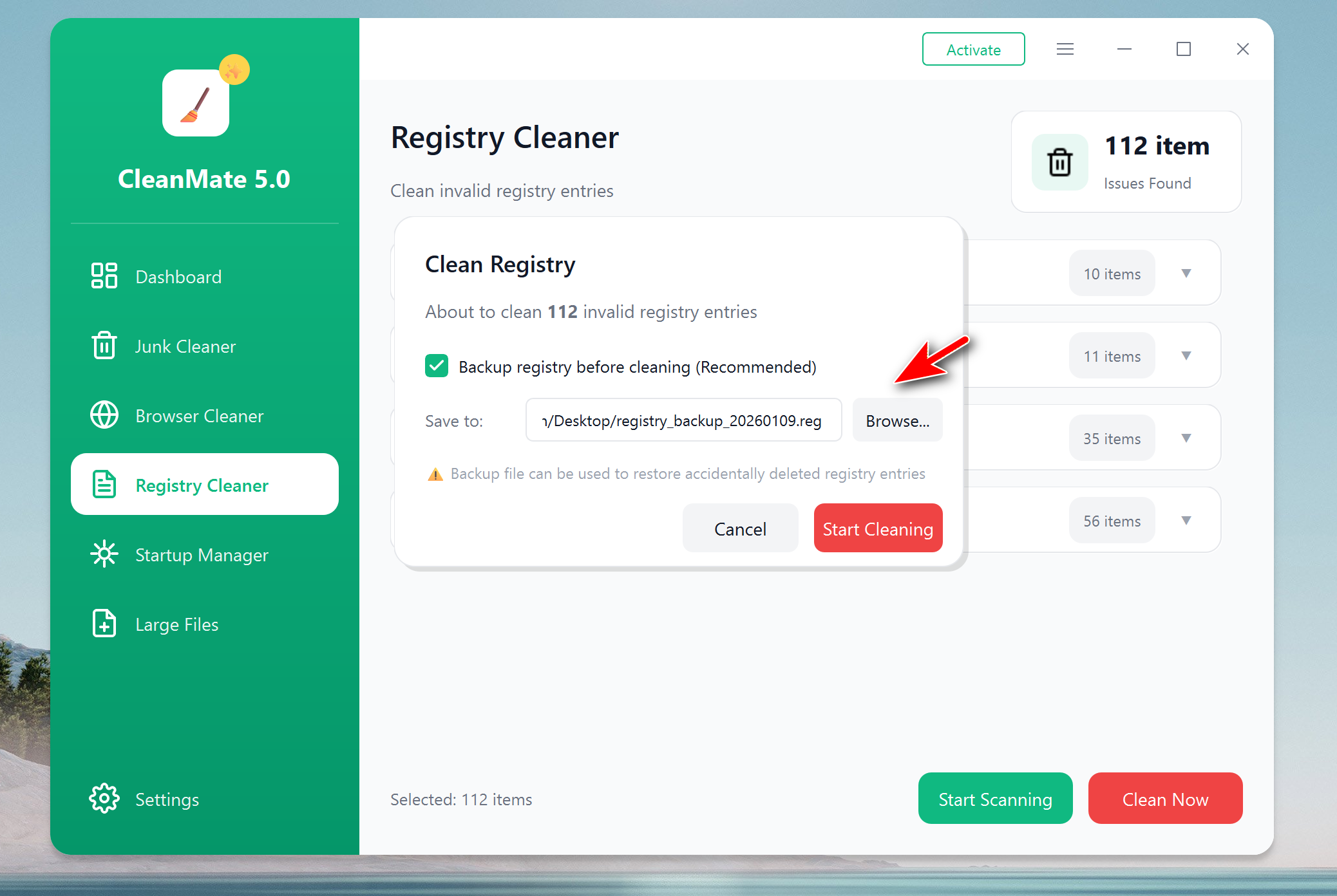
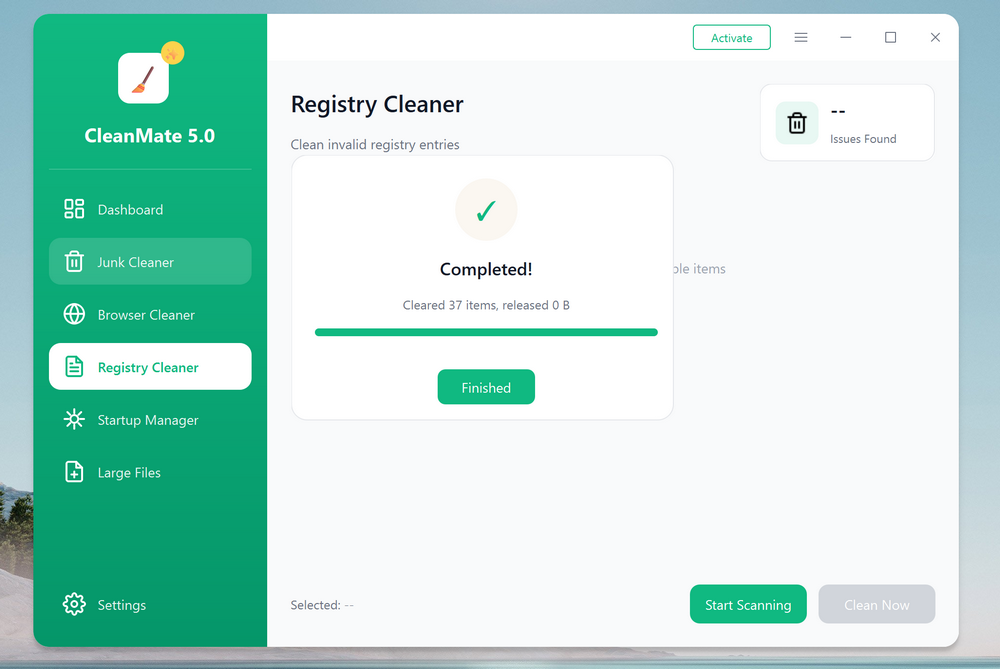
Step 4: After selection, click the Start Cleaning button to clean up the whole registry on this computer.
Part 4: How to Disable Startup Apps with CleanMate
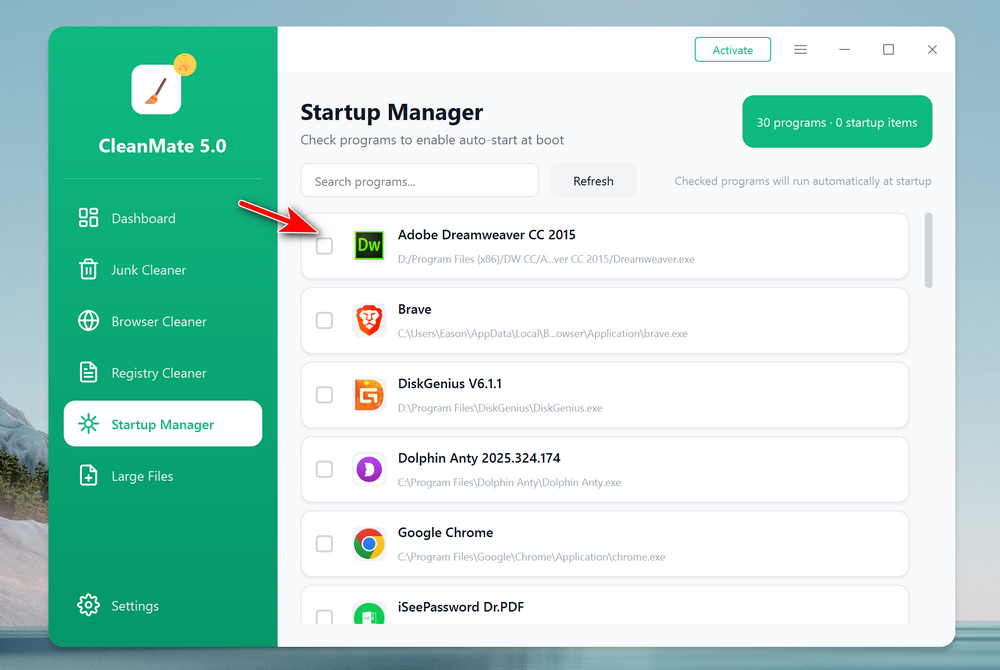
The Startup Manager feature lets you control which programs run automatically when Windows starts. By turning off unnecessary startup apps, it helps reduce boot time, lower background resource usage, and make your PC start up faster and run more smoothly
Step 1: Open the CleanMate app on your computer and click the Startup Manager menu from the left sidebar. Wait a few seconds, CleanMate will list all startup apps on the screen.
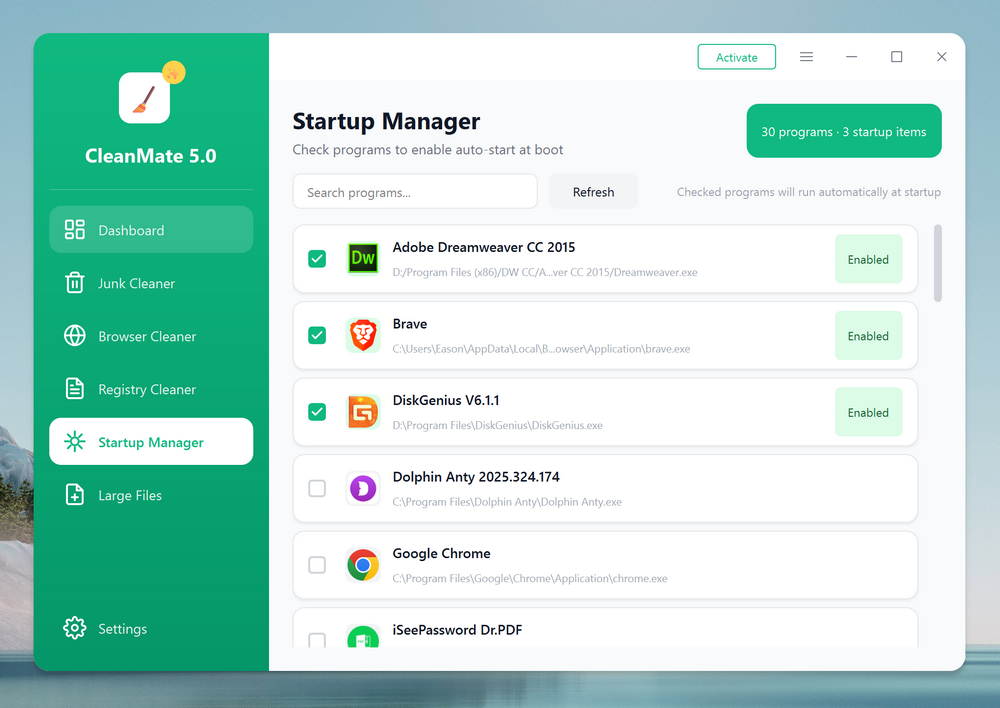
Step 2: You can uncheck the option at the left side of app names. This will disable the app from auto running at the startup.
Part 5: How to Find and Delete Large Files with CleanMate
The Large Files feature scans your computer to identify oversized files that take up significant disk space, such as videos, installers, and old backups. It helps you quickly locate, review, and delete files you no longer need, making it easier to free up storage and keep your PC organized.
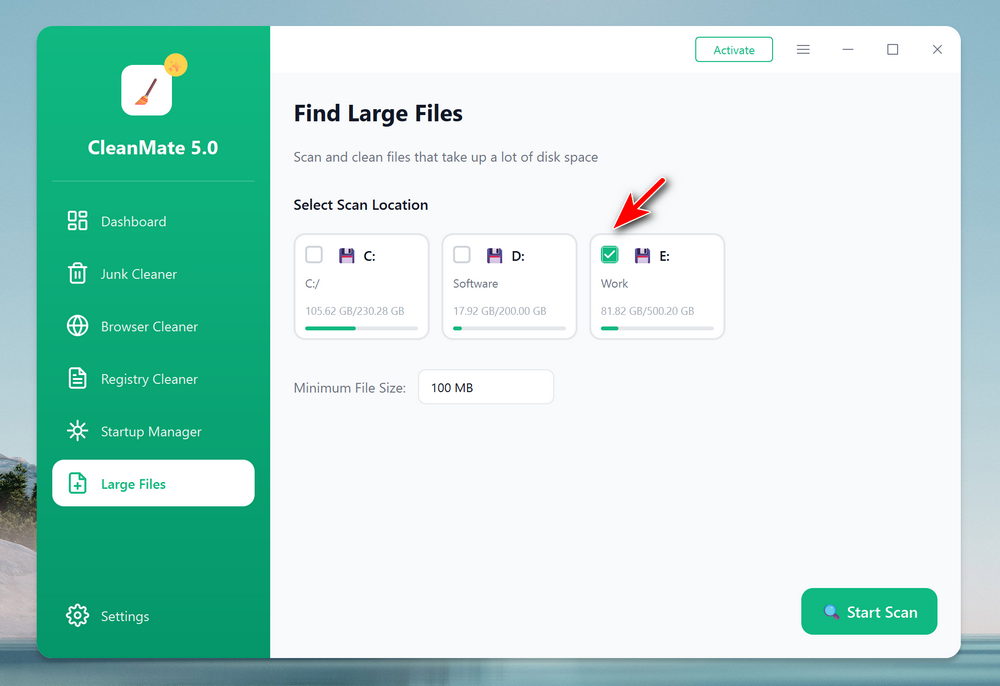
Step 1: Open the CleanMate app on your computer and click the Large Files menu from the left sidebar.
Step 2: From the new window, select the drive you want to find the large files. You can set a value for the large files to be scanned. The default value is 100 MB.
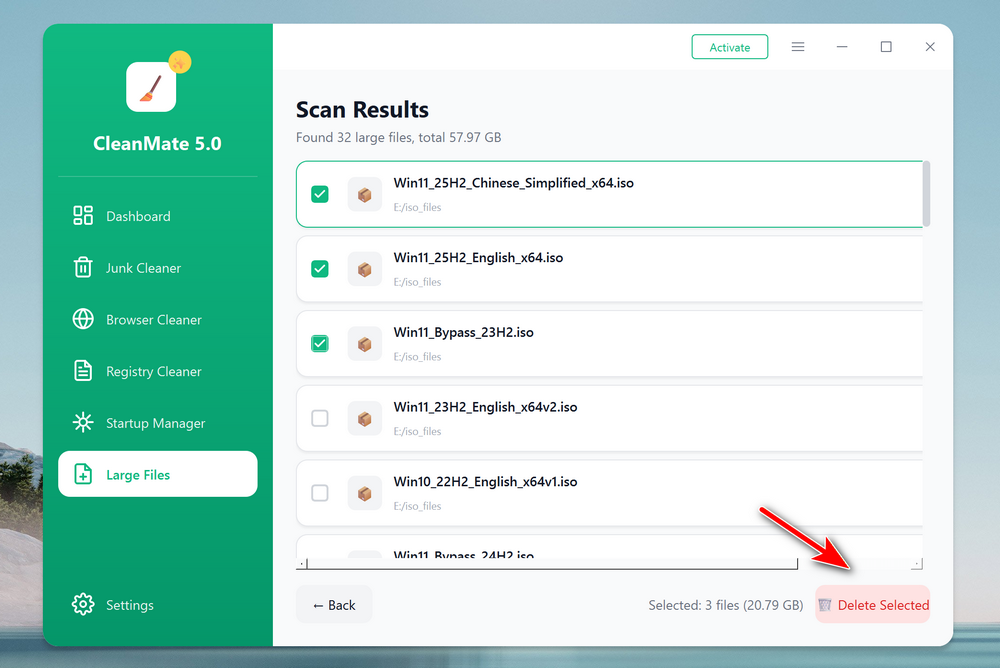
Step 3: Wait about 2-3 minutes, all large files will be present on the screen. After selection, click the Delete Selected button to delete the large files from the computer.
Summary:
CleanMate makes PC maintenance simple, safe, and efficient. By using its cleaning and optimization features regularly, you can keep your Windows system running smoothly, reduce clutter, and maintain better overall performance. We recommend following the instructions in this guide to get the best results and enjoy a faster, cleaner, and more reliable PC with CleanMate.
💬 Reviews