
A multiboot USB drive is an extremely useful tool for IT professionals, system administrators, and everyday computer users. Instead of carrying multiple USB drives for different operating systems, a multiboot USB allows you to store and boot several ISO files—such as Windows installers, Linux distributions, and recovery tools—on a single USB stick. This makes it easy to install operating systems, troubleshoot computers, or run portable environments whenever needed.
While there are several tools available for creating bootable USB drives, many of them are either too complicated or only work on a specific platform. For users who want a simple and reliable solution that works on both Windows and macOS, UUByte ISOKit offers a powerful way to create a multiboot USB drive quickly and safely.
Why Use UUByte ISOKit to Create a MultiBoot USB
Cutting Edge Multiboot Technology: Integrate the latest multiboot technology, allowing users to copy multiple ISO files directly onto the USB drive and boot from any of them without reformatting.
Support 1000+ ISOs: Including Windows, Linux, Unix, ChromeOS and recovery PE.
Download Windows ISO Directly: Download official Windows ISO images directly within the program, eliminating the need to search for them online.
Cross-Platform Compatibility: Work seamlessly on Windows PCs and Mac computers, making it ideal for users who work across multiple systems.
Simple and User-Friendly Interface: Creating a multiboot USB drive only requires a few clicks, even for beginners.
How to Create a Multi-Boot USB Drive on a Windows PC or Mac
Step 1: Download the latest version of UUByte ISOKit from the official website and install it on your computer. The software is available for both Windows and macOS. After installation, launch the program and insert your USB flash drive into the computer.


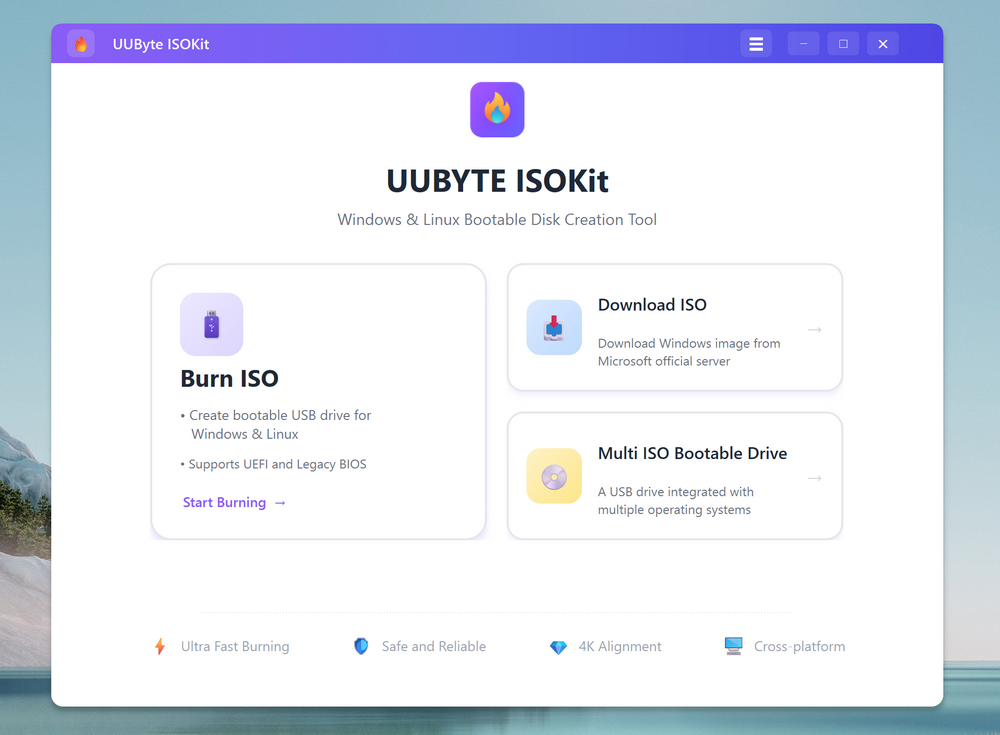
Step 2: On the main interface, locate the "Multi ISO Bootable Drive" option and select the inserted USB drive from the list.
Step 3: Now, add the ISO images into the program by clicking the "Add ISO" button. All ISO files will automatically appear in the boot menu when the computer starts. Once it is done, click the Start button to start making multiboot USB drive from imported ISO files.
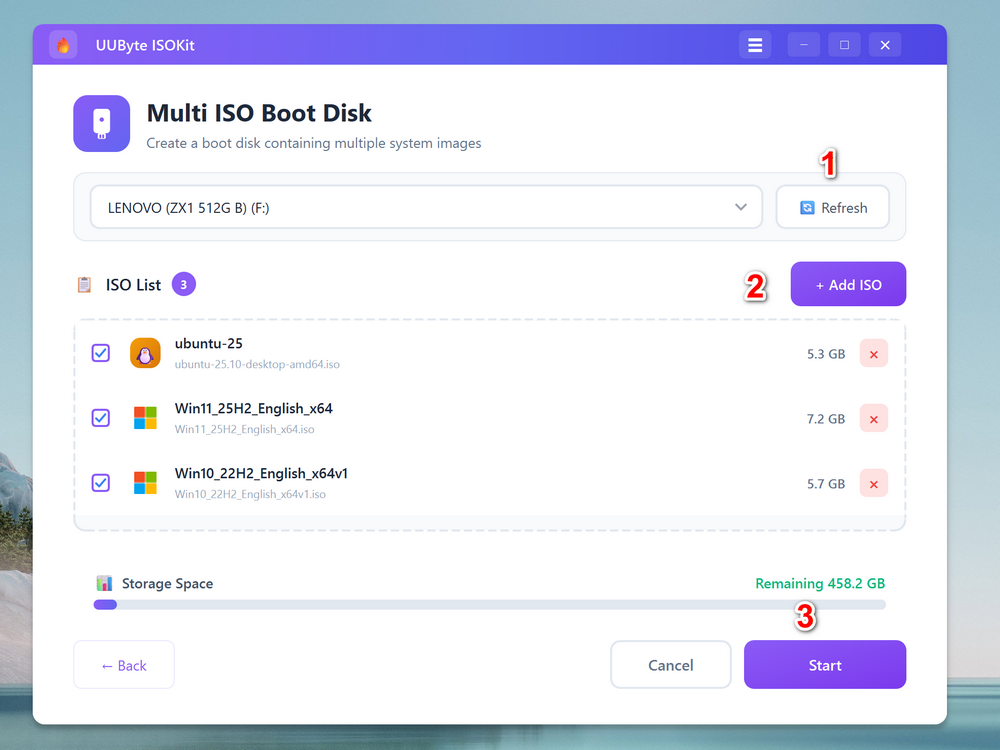
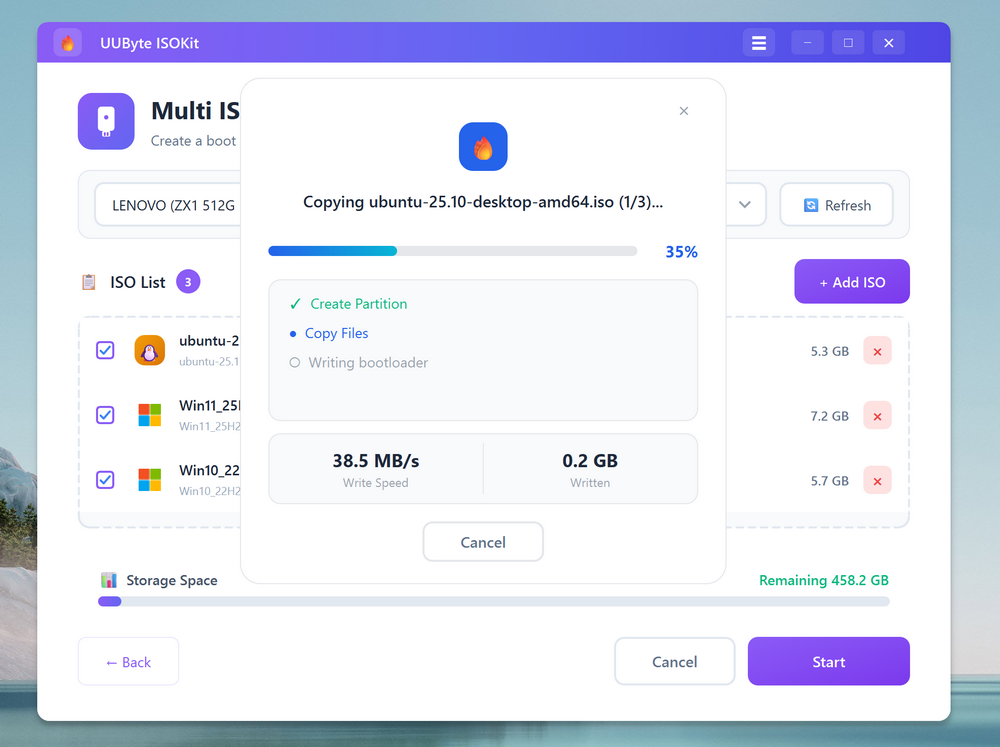
Note: This process will format the USB drive, so make sure to back up any important files beforehand.
Step 4: Wait a couple of minutes and you will have a multiboot USB drive for different OS installation.
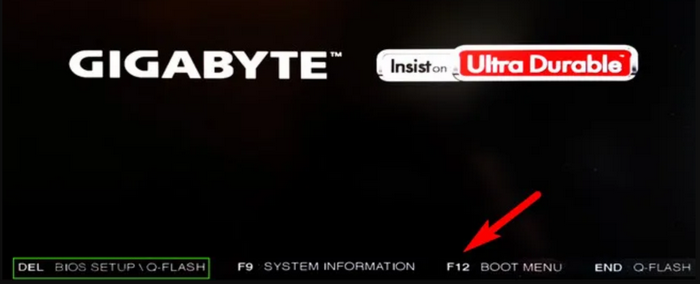
Step 5: Insert the USB drive into the target computer and restart the device. Enter the boot menu (usually by pressing F12, F9, ESC, or DEL, depending on the manufacturer) and choose the USB drive as the boot device.
Step 6: The boot menu will appear, displaying all ISO files stored on the USB drive. At this time, select the operating system you want to boot and continue with installation or troubleshooting.
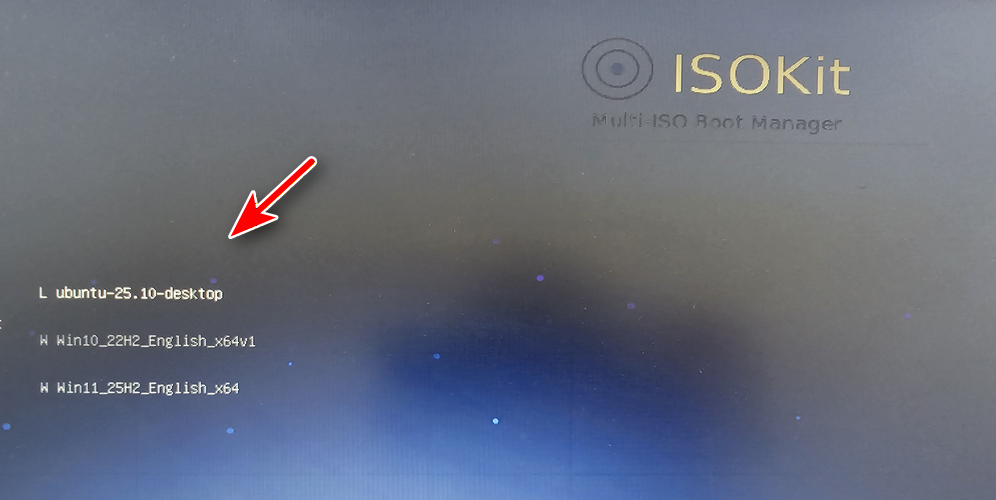
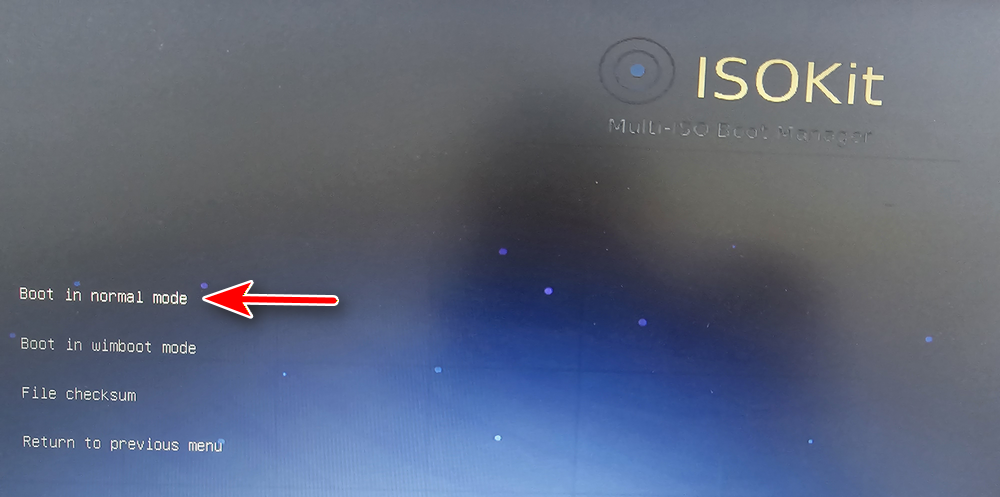
Step 7: You will be present with a couple of booting options after selecting the boot operating system. For installing a new OS, please choose "Boot in normal mode" at s time.
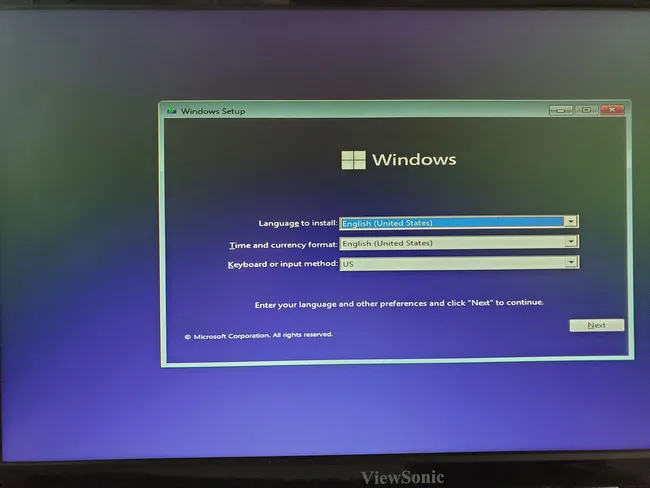
Step 8: Finally, follow the screen prompt to install OS from this USB drive.
The Bottom Line
Creating a multiboot USB drive no longer requires complex command-line tools or advanced technical knowledge. With UUByte ISOKit, users can easily build a powerful multiboot USB that contains multiple operating systems and recovery tools on a single drive.
Thanks to its smart multiboot support, cross-platform compatibility, and built-in Windows ISO downloader, ISOKit provides one of the easiest and most efficient ways to create a multiboot USB drive on both PC and Mac. Whether you need a portable installation tool, a system recovery solution, or a convenient OS toolkit, ISOKit makes the entire process fast, simple, and reliable.