
Many programs automatically start running as soon as Windows boots, even when you rarely use them. These autostart apps can slow down startup time, consume system resources in the background, and make your PC feel sluggish. Using CleanMate provides a simple and effective way to manage and disable unnecessary autostart apps on Windows 11 and Windows 10, helping your PC run faster and smoother.
The Benefits of Disabling Autostart Apps
Disabling unneeded startup programs is one of the easiest ways to improve PC performance. When fewer apps run at startup, Windows can load faster and use system resources more efficiently.
- Faster boot time and quicker access to the desktop.
- Reduced CPU and memory usage in the background
- Fewer unnecessary programs running silently
- Better control over what loads when Windows starts
CleanMate makes this process safe by clearly showing which apps start with Windows and allowing easy control with just a few clicks.
How to Disable Autostart Apps on Windows 11/10 to Speed up PC
Step 1: Download and install CleanMate app on your Windows PC.

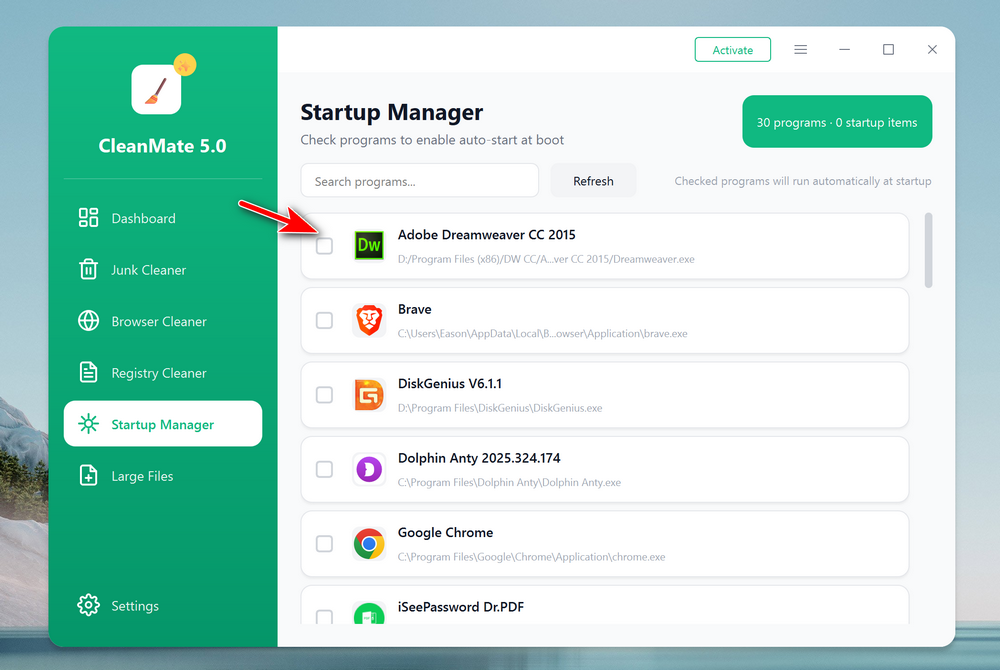
Step 2: Open the CleanMate app on your computer and click the Startup Manager menu from the left sidebar. Wait a few seconds, CleanMate will list all startup apps on the screen.
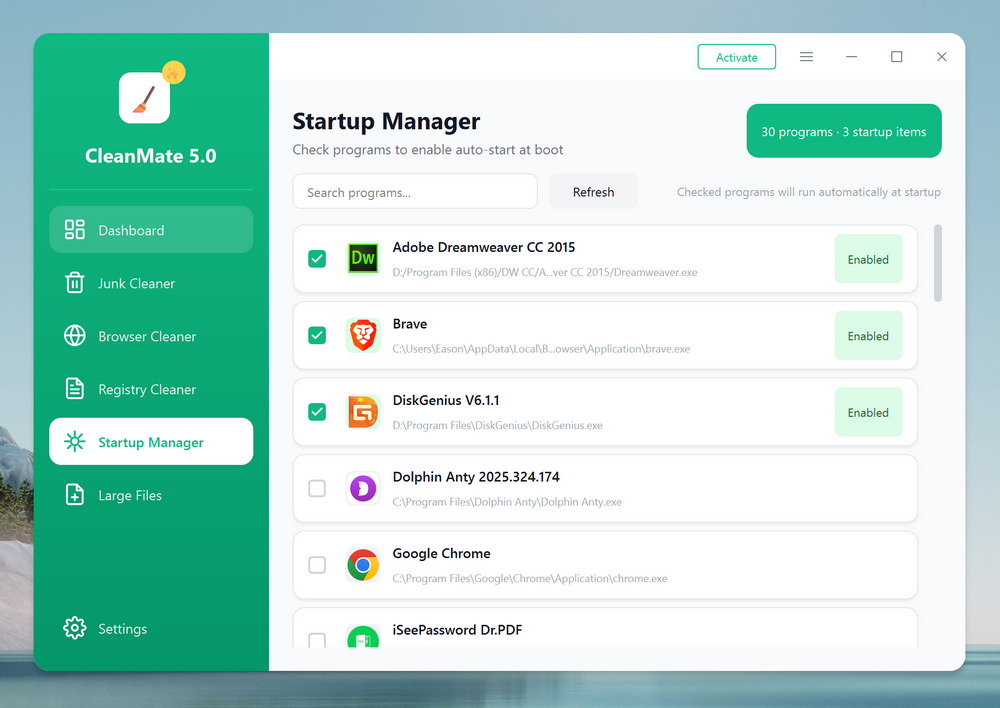
Step 3: You can uncheck the option at the left side of app names. This will disable the app from auto running at the startup.
FAQs
1. What are autostart apps in Windows?
Autostart apps are programs that automatically launch when Windows starts. Many are added during software installation and continue running in the background.
2. Is it safe to disable startup apps?
Yes, disabling non-essential startup apps is safe. CleanMate helps identify unnecessary programs while leaving critical system processes untouched.
3. Will disabling startup apps break my software?
No. Disabling an app from startup does not uninstall it. You can still open and use the program normally when needed.
4. How often should I review startup apps?
It’s a good idea to review startup apps every few months or after installing new software to keep startup times fast.
Conclusion
Disabling autostart apps is a proven and effective way to speed up a Windows PC. With CleanMate, managing startup programs becomes easy, safe, and beginner-friendly. By regularly reviewing and disabling unnecessary startup apps, you can enjoy faster boot times, smoother performance, and a more responsive Windows 11 or Windows 10 experience.