
Running out of disk space is a common problem for Windows users, especially on systems with smaller SSDs. While temporary files and cache can take up space, large files are often the biggest storage hogs. Old videos, installers, backups, and forgotten downloads can quietly consume tens of gigabytes. Deleting large files is one of the fastest and most effective ways to free up space on a Windows PC.
Why Using CleanMate for Deleting Large Files
Large files usually come from video recordings, ISO files, software installers, compressed archives, and old backups. These files are often stored in Downloads, Videos, or unused folders and easily forgotten. Unlike cache files, deleting just a few large files can instantly recover a huge amount of storage.
Automatically finds all temp files – Scans system temp folders, app cache, logs, thumbnails, and update leftovers at once.
Safe cleanup rules – Deletes only unnecessary temporary files, avoiding important system data.
Clear scan preview – Shows file types and space to be freed before deletion.
One-click cleanup – Removes temporary files quickly without manual searching.
Beginner-friendly design – Easy to use even with no technical experience.
Optimized for Windows 11 and 10 – Ensures reliable and effective temporary file cleanup.
How to Quickly Find and Delete Large Files with CleanMate
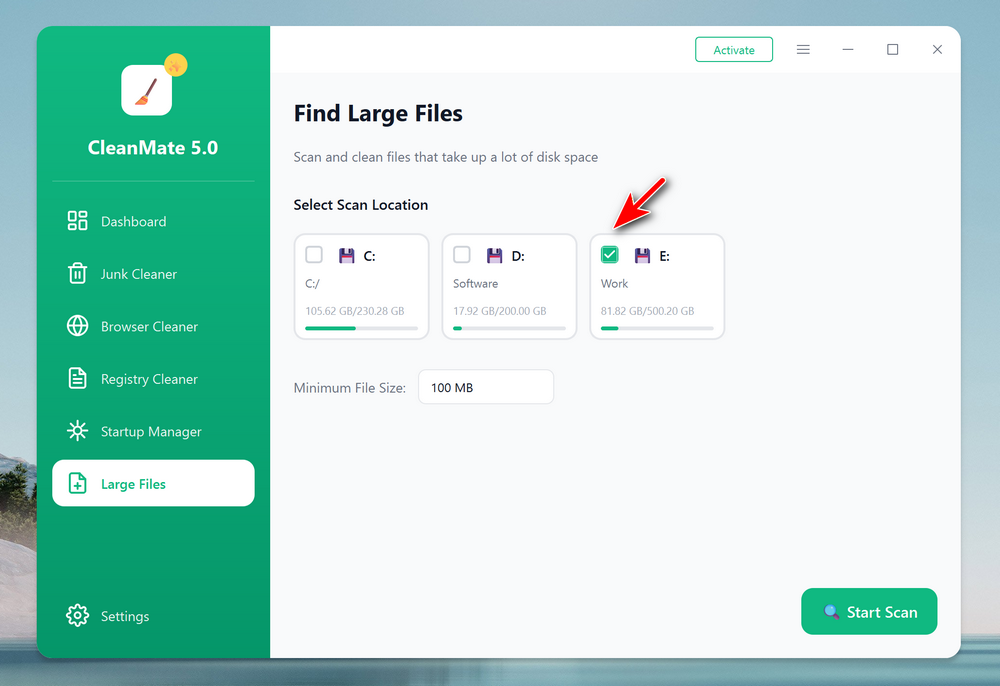
Step 1: Open the CleanMate app on your computer and click the Large Files menu from the left sidebar.

Step 2: From the new window, select the drive you want to find the large files. You can set a value for the large files to be scanned. The default value is 100 MB.
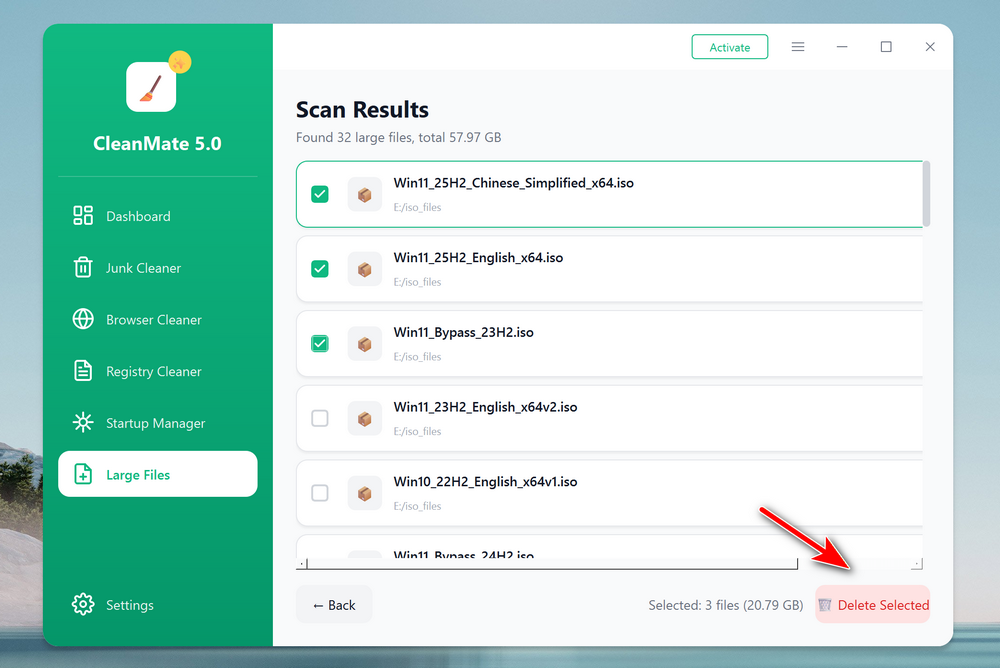
Step 3: Wait about 2-3 minutes, all large files will be present on the screen. After selection, click the Delete Selected button to delete the large files from the computer.
Summary
If your Windows PC is running out of space, deleting large files should be your first step. It delivers instant results with minimal effort. With CleanMate, finding and removing large files becomes quick, safe, and stress-free—helping you reclaim storage and keep your PC running smoothly.