How to Uninstall Microsoft Copilot Completely from Windows 11/10

If Microsoft Copilot keeps appearing on your PC or you simply do not want the app installed, CleanMate gives you a simple desktop workflow. Its App Uninstaller helps you quickly find Copilot, select it, and remove it from one clear interface.

Made for Windows 11/10 • No PowerShell or command-line steps required

Alex Chen By Alex Chen · Updated Sep 1, 2026

How to Uninstall Microsoft Copilot 365 From Windows 11/10 with CleanMate

The workflow is straightforward: install CleanMate, open App Uninstaller, search for Copilot, select the Copilot entries you want to remove, and start the uninstall process.

1

Download and Install CleanMate

Download CleanMate on your Windows PC, complete the installation, and launch the program. CleanMate supports Windows 11 and Windows 10, so you can use the same App Uninstaller workflow on either system.

Compatible with Windows 11 and Windows 10
Install the app before continuing with the steps below.
Download CleanMate
CleanMate installed and ready to uninstall Microsoft Edge screenshot placeholder
2

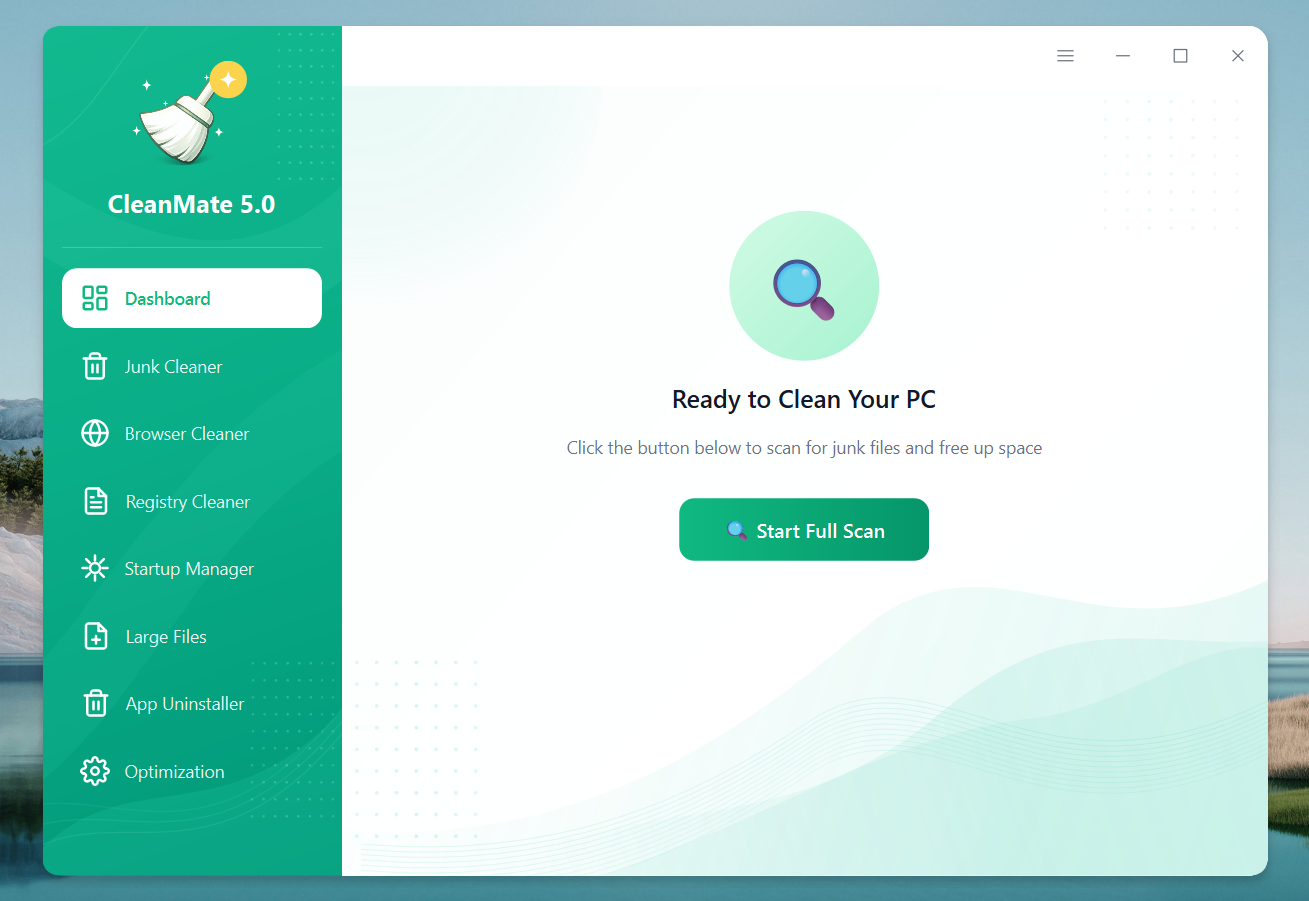
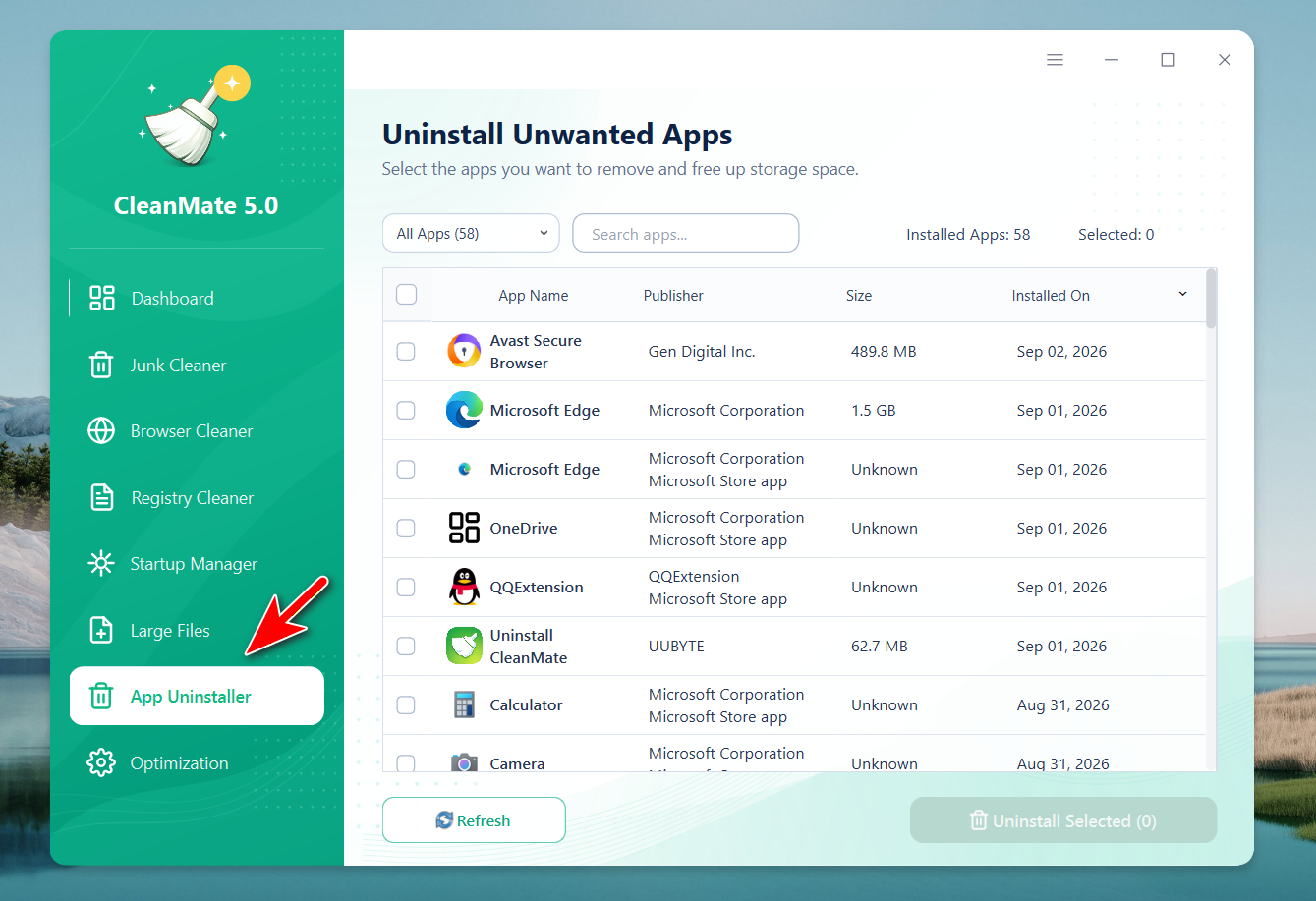
Open the App Uninstaller

In the left sidebar, click App Uninstaller. CleanMate loads the installed-app list and shows useful details such as the app name, publisher, size, and installation date..

  • Wait for the installed-app list to finish loading before searching.
  • Use batch import when several videos need the same settings.
  • Review the publisher information so you do not remove an unrelated application by mistake.
Open App Uninstaller in CleanMate screenshot placeholder
3

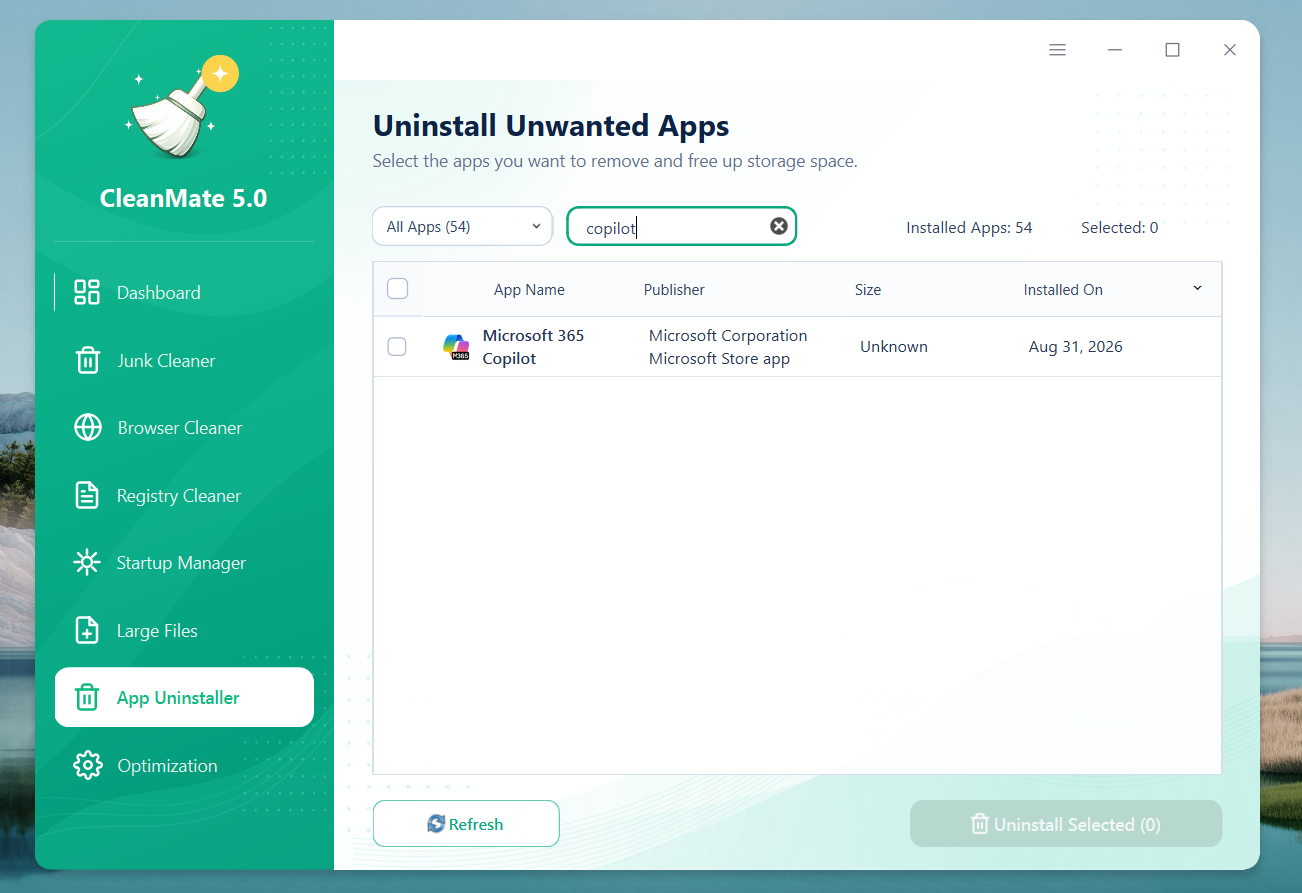
Search for Microsoft Copilot

Use the search box at the top of App Uninstaller and type "onedrive". CleanMate filters the list so you can focus on Copilot entries instead of scrolling through every installed app.

Depending on the Windows build, you may see more than one Copilot entry. Review each item carefully and avoid selecting unrelated Microsoft components that you still need.

Search for Microsoft Copilot in CleanMate App Uninstaller screenshot placeholder
4

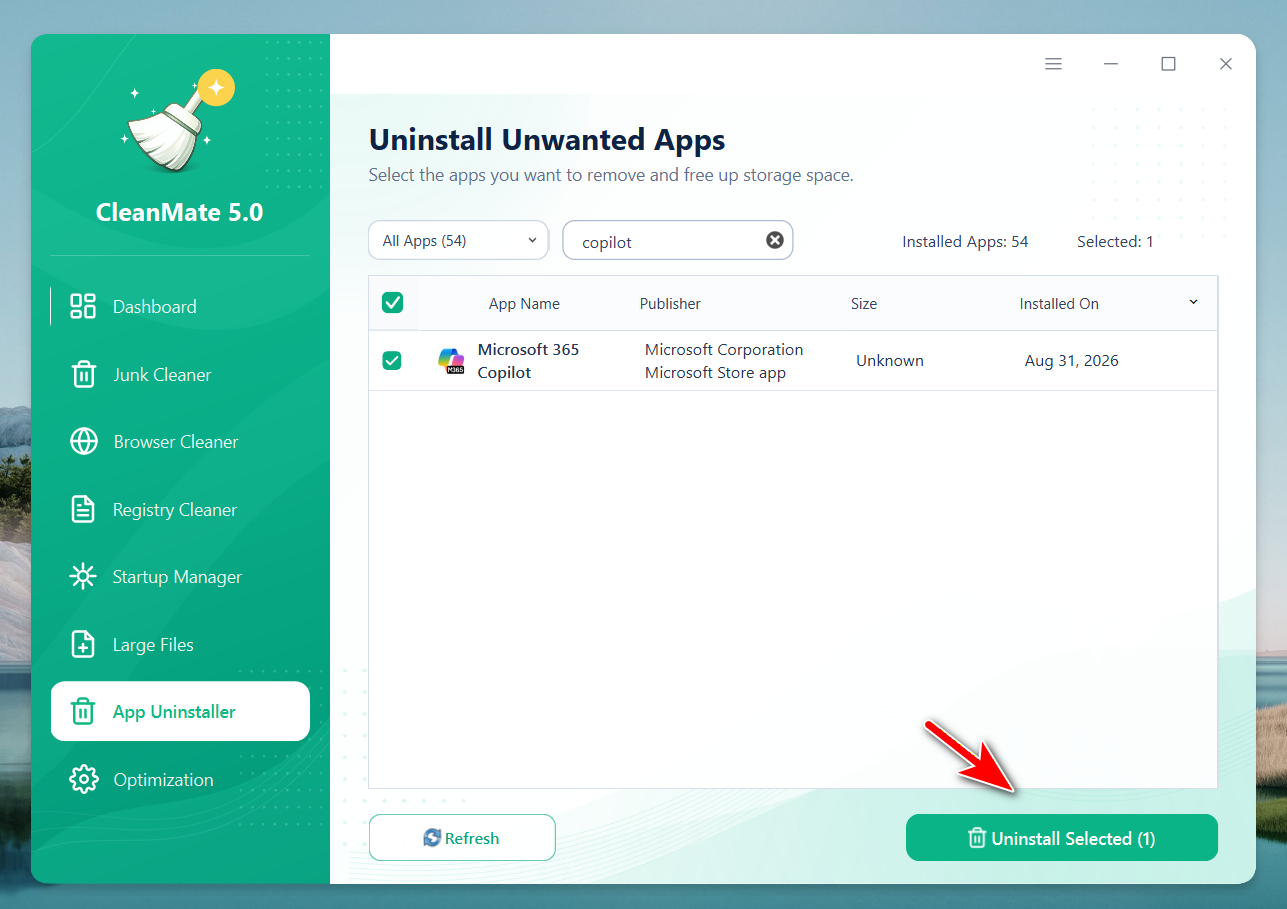
Select the Copilot Entries and Start Uninstalling

Tick the checkbox beside each Microsoft Copilot entry you want to remove. The counter at the top and the Uninstall Selected button show how many apps are currently selected.

Click Uninstall Selected to begin. If Windows displays a User Account Control or uninstall confirmation prompt, review it and approve the removal to continue.

Select Copilot entries and click Uninstall Selected in CleanMate screenshot placeholder
5

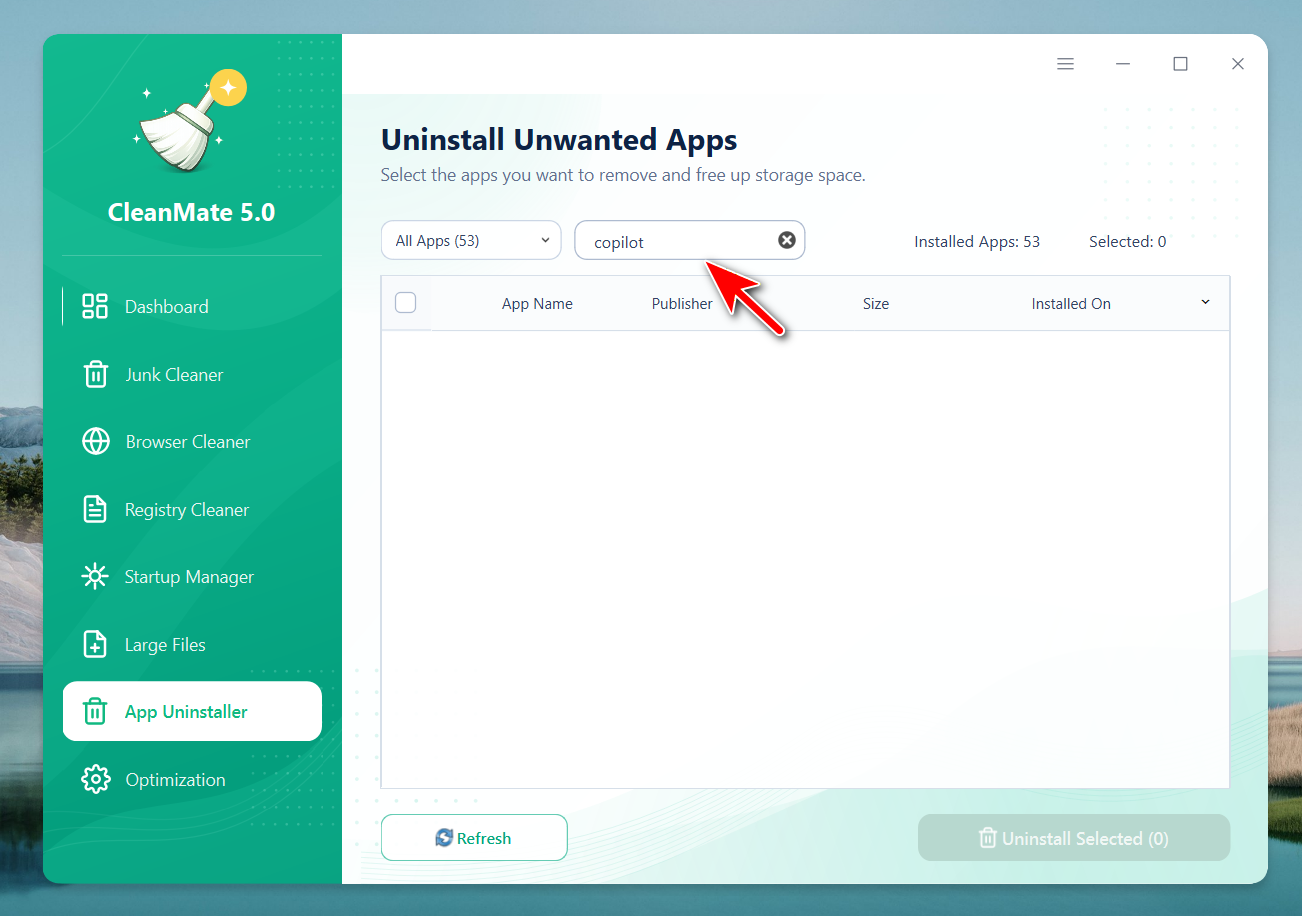
Finish the Removal and Verify the Result

Follow any remaining uninstall prompts until CleanMate reports that the selected items have been processed. Afterward, open App Uninstaller again and you can see the Copilot was not uninstalled successfully as there is no result showing up when searching for Copilot.

Select Copilot entries and click Uninstall Selected in CleanMate screenshot placeholder

Best Option for Uninstalling Copilot

CleanMate is useful when you want a visual uninstall workflow and Windows does not make Copilot removal obvious through the normal Settings app.

Ready to delete Copilot from Your PC?

Download CleanMate

Frequently Asked Questions

Quick answers about uninstalling Edge with CleanMate.

Can CleanMate remove Microsoft Copilot completely?

CleanMate can remove the Microsoft Copilot app detected by its App Uninstaller. After uninstalling, search for Copilot again to verify that the app is no longer listed on your PC.

Does uninstalling Copilot affect Windows 11 or Windows 10?

No. Microsoft allows the standalone Copilot app to be uninstalled from both Windows 11 and Windows 10. Removing the app does not remove Windows itself or prevent you from using your other installed programs.

Do I need PowerShell or Terminal commands?

No. CleanMate provides a graphical App Uninstaller, so the basic workflow is handled with the search box, checkbox, and the Uninstall Selected button.

💬 Reviews

Rate your experience
★ ★ ★ ★ ★
Replying to
Preview
Loading...