▶ FrameMint
Free Download
Desktop Video Compressor

How to Compress Video Without Losing Quality

Make large videos easier to email, upload, share, and store. FrameMint lets you reduce video file size with a quality preset or compress directly to a target size—all from one simple desktop app.

No browser upload required. Your videos are processed on your computer.
Quality PresetsChoose a simple preset instead of guessing technical settings.
Target File SizeSet the size you need for email, uploads, or sharing limits.
Batch CompressionAdd multiple videos or an entire folder and process them together.
Local ProcessingYour video files stay on your computer during compression.

Why Use FrameMint to Compress Large Videos?

FrameMint is designed for people who want smaller videos without learning complicated encoding terminology or repeatedly testing random settings.

↓

Reduce Video File Size Easily

Choose a quality preset and let FrameMint calculate an appropriate output instead of manually adjusting dozens of options.

◎

Hit a Specific Size Limit

Use Target Size when a website, email service, or messaging app has a maximum file-size requirement.

▣

Compress More Than One Video

Add several videos or a whole folder so you don't have to repeat the same compression workflow file by file.

How to Compress Video with FrameMint

The workflow is straightforward: install FrameMint, add your videos, choose how you want them compressed, and save the smaller copies.

1

Download and Install FrameMint

Start by downloading FrameMint to your computer. Install the program and open it to access the video compression workspace.

Unlike browser-based compressors, FrameMint runs as a desktop app, so your videos do not need to be uploaded to a third-party website before compression.

2

Add the Video or Folder You Want to Compress

Click Add Videos to select individual video files. If you have many videos in the same location, click Add Folder to load them together.

  • Use Add Videos for one or several selected files.
  • Use Add Folder when you want to compress a group of videos at once.
  • Check the file name, original size, and video duration before continuing.
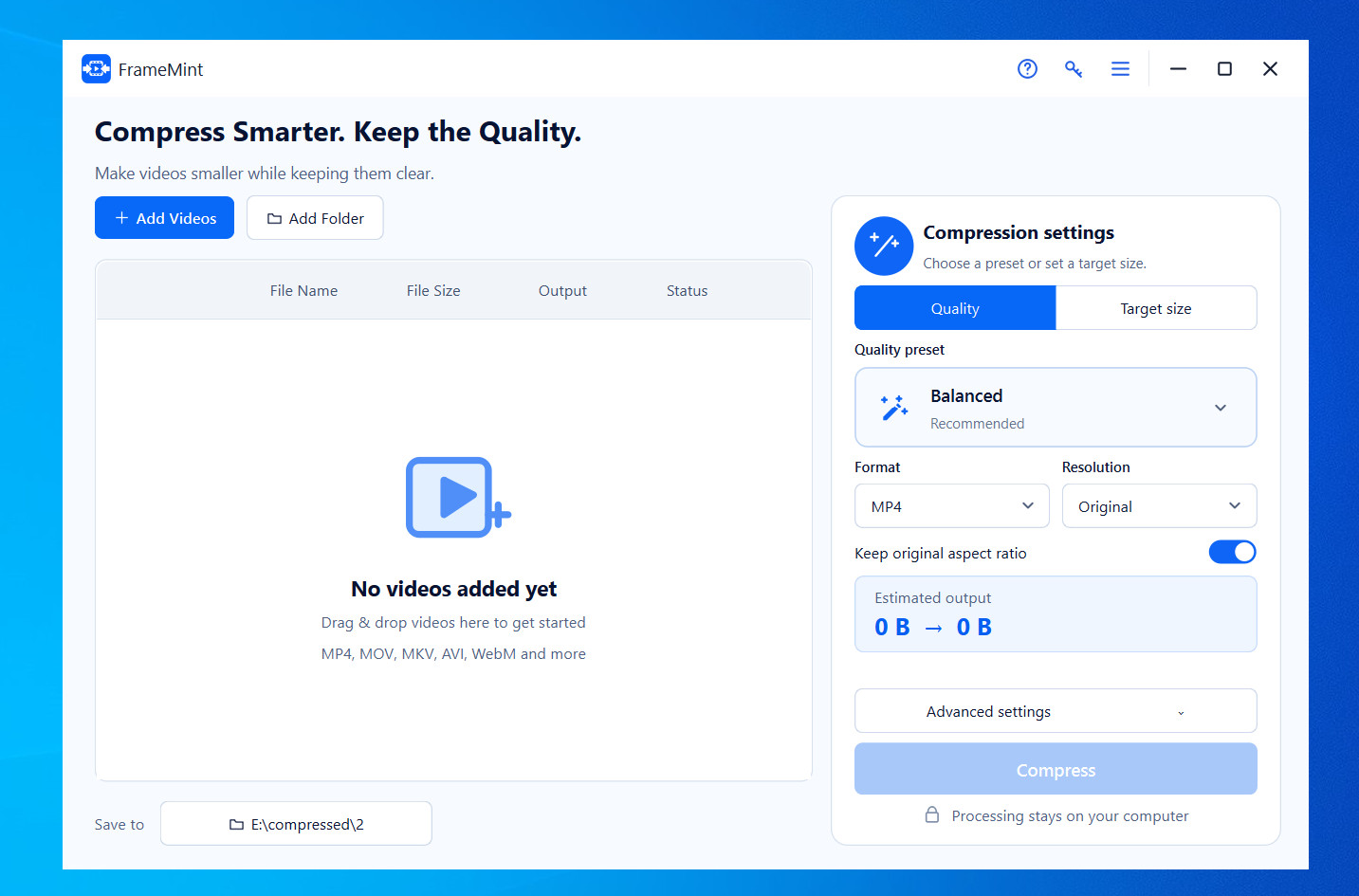
Add videos to FrameMint screenshot placeholder
3

Choose Quality or Set a Target File Size

FrameMint gives you two practical ways to control compression. Choose the option that best matches what you are trying to do.

  • Quality: Pick a preset such as Balanced when you want FrameMint to reduce the file while maintaining a good quality-to-size balance.
  • Target Size: Enter the approximate file size you need when you must stay under a specific upload or sharing limit.

You can also choose the output format and resolution, and keep the original aspect ratio if you do not want the video proportions changed.
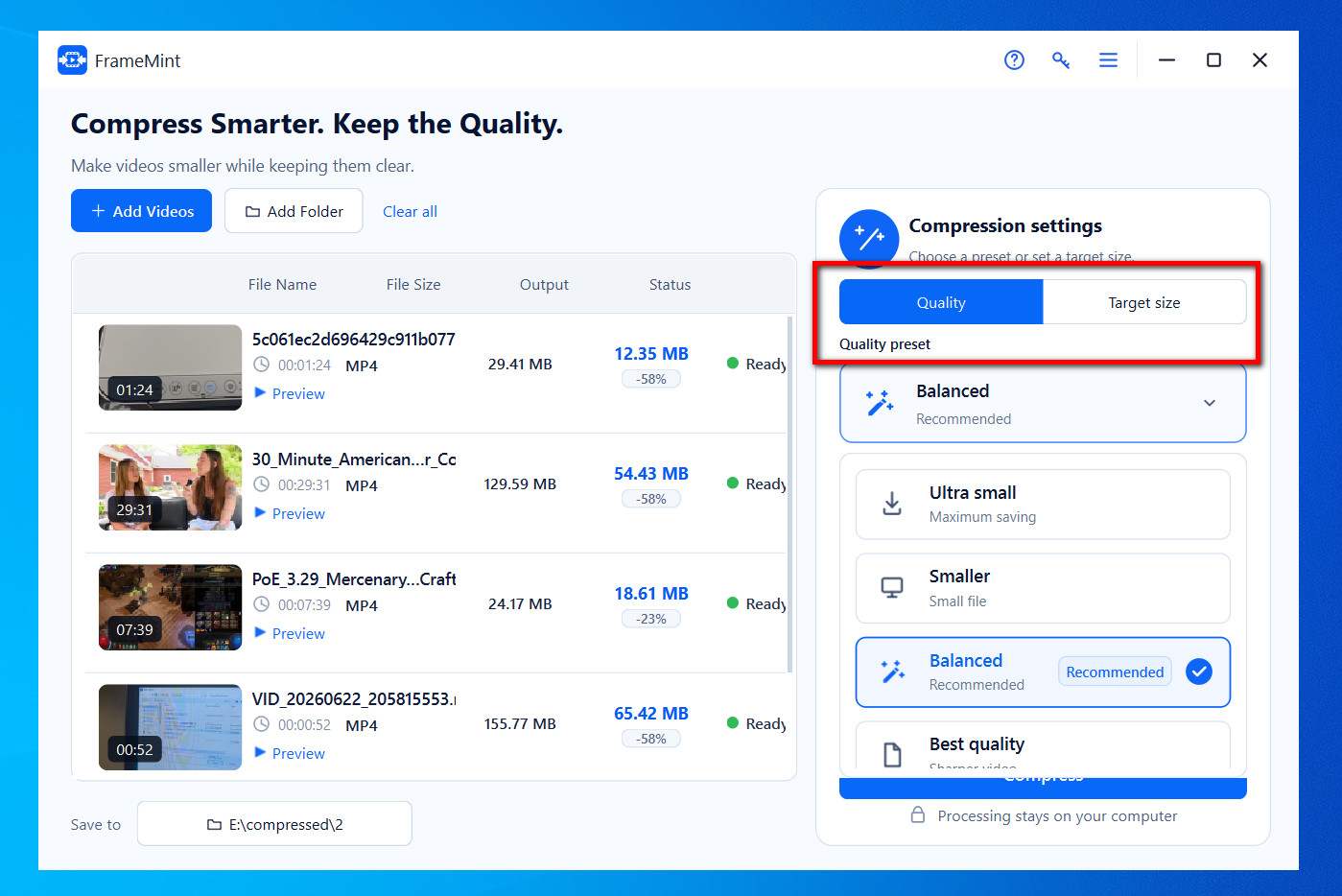
FrameMint compression settings screenshot placeholder
4

Check the Estimated Output Size

Before you start, review FrameMint's estimated output. This lets you see the approximate compressed size and expected space savings before processing the video.

If the estimate is still larger than you need, switch to Target Size or adjust your compression choice before starting. This can save you from compressing the same video multiple times just to reach a limit.
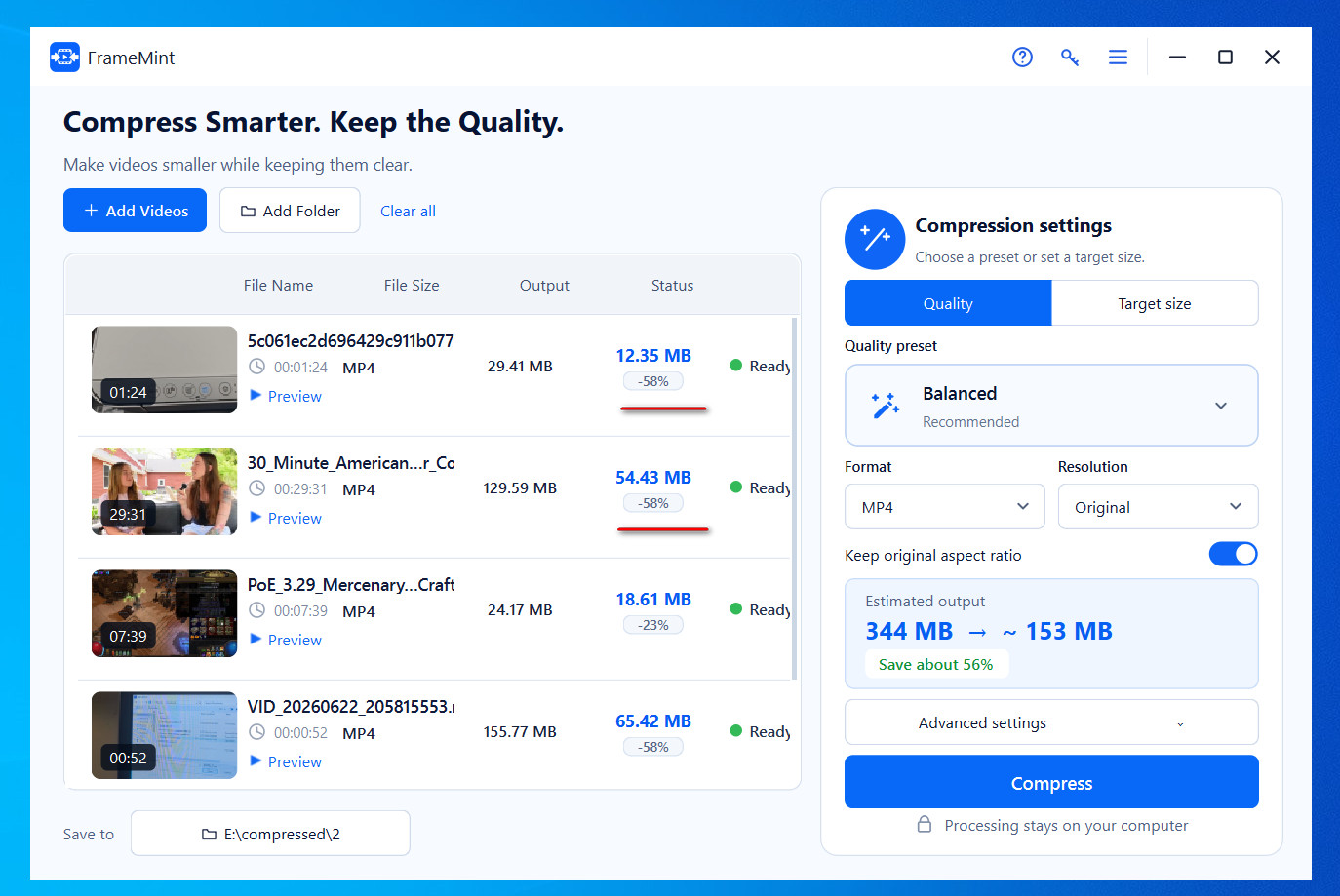
FrameMint estimated output screenshot placeholder
5

Choose a Save Location and Compress the Video

Select the folder where you want the compressed videos to be saved. When everything looks right, click Compress Videos.
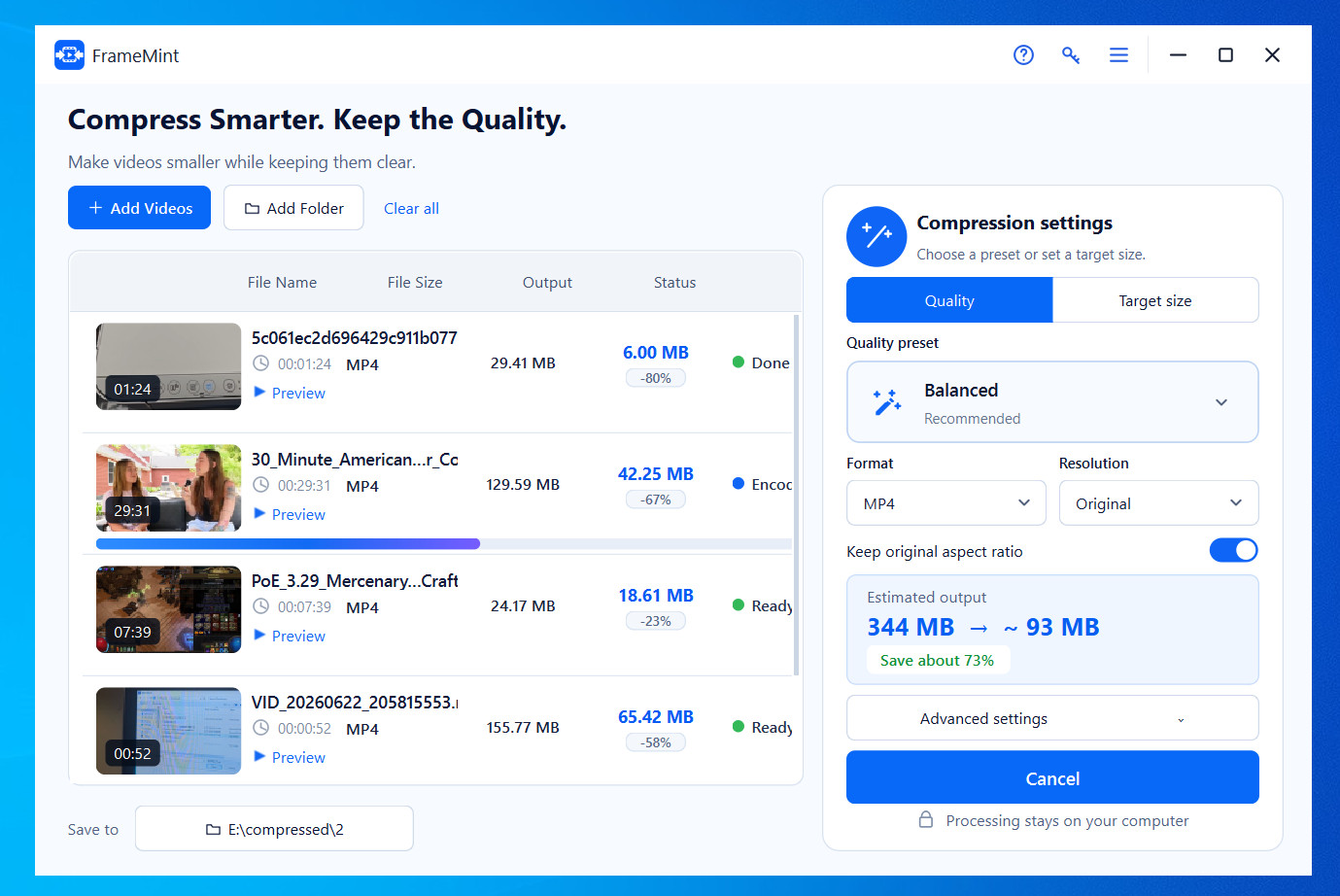
Compress videos with FrameMint screenshot placeholder

FrameMint processes the files on your computer and saves the smaller output to the folder you selected. If several videos were added, you can process the batch instead of repeating the workflow for each file.
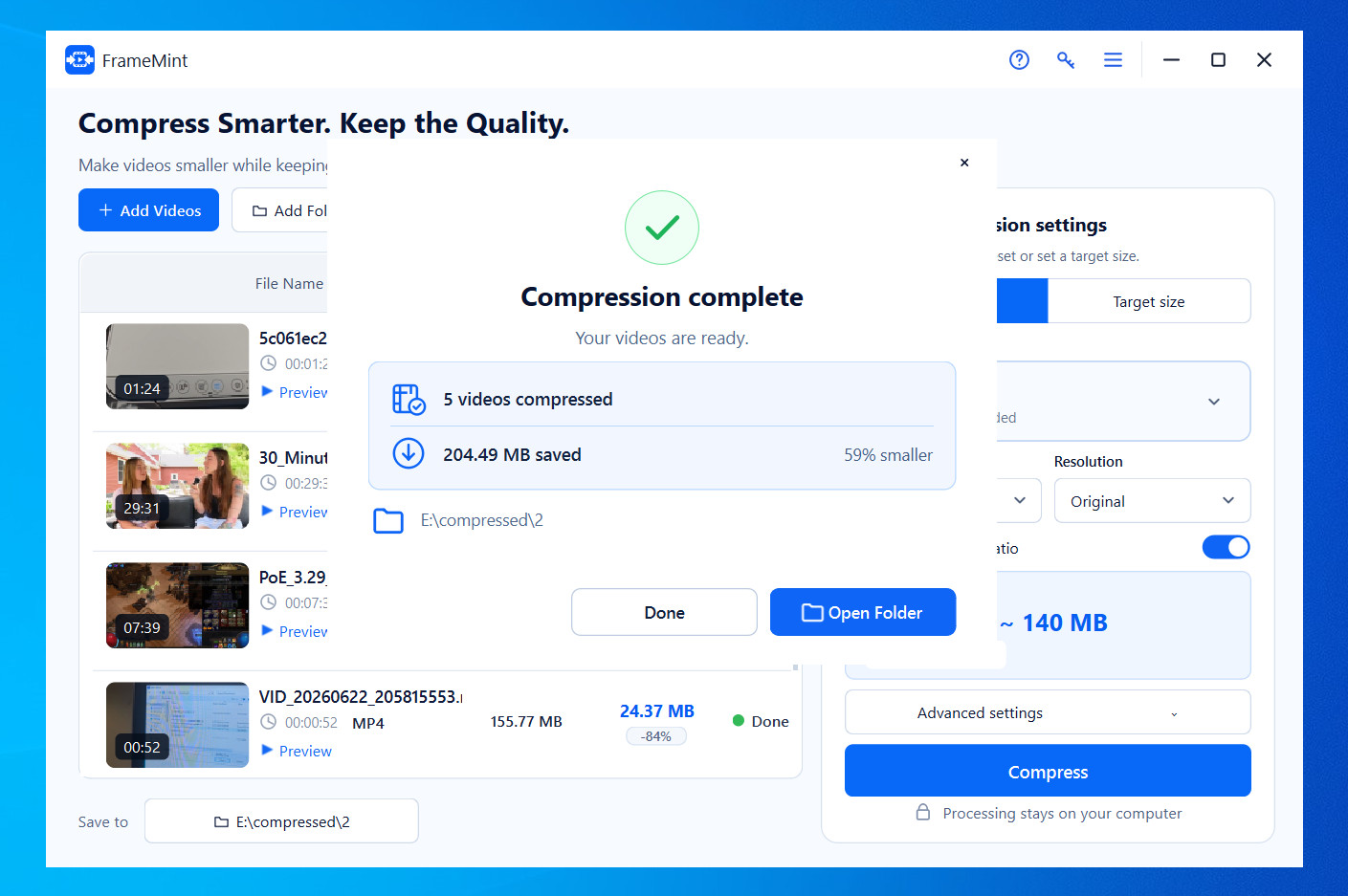
Compress videos with FrameMint screenshot placeholder

Need a Video Under a Specific Upload Limit?

Use FrameMint's Target Size mode instead of repeatedly compressing and checking the result. Enter the size you need and let FrameMint handle the compression settings for you.

Free Download

When FrameMint Is Especially Useful

A smaller video is easier to move, share, and store. FrameMint is useful whenever file size matters more than keeping the original oversized copy.

Email Attachments

Reduce oversized videos before attaching them to an email with a file-size limit.

Website Uploads

Compress a video before uploading when a form or platform rejects large files.

Messaging & Sharing

Create a smaller copy that is easier and faster to send through messaging or collaboration apps.

Save Disk Space

Compress large collections of videos when the original files are using more storage than you need.

Frequently Asked Questions

Can FrameMint compress video without noticeable quality loss?

FrameMint provides quality-based presets designed to balance file size and visual quality. The final result depends on the source video and the amount of compression you choose.

Can I compress a video to a specific MB size?

Yes. Use the Target Size option when you want the output to be close to a specific file size rather than simply selecting a quality preset.

Can I compress multiple videos at once?

Yes. FrameMint lets you add multiple videos and also supports adding a folder for batch compression.

Do I need to upload my videos to the Internet?

No. FrameMint processes videos on your computer, so the compression workflow does not require uploading your files to an online video-compression service.

Can I keep the original video resolution and aspect ratio?

FrameMint includes resolution controls and an option to keep the original aspect ratio. You can choose the settings that best fit your output requirements.

Compress Your First Video with FrameMint

Download FrameMint, add your video, choose a quality preset or target size, and create a smaller copy in just a few steps.

Free Download FrameMint
Desktop compression • Batch processing • Target size • Local video processing
Free Download FrameMint